
With AI Strategy Studio, you no longer need to watch charts around the clock or calculate trade levels by hand; artificial intelligence watches your symbols 24/7 and prepares the complete trading plan as soon as your setup forms. After saving your strategy, open the symbol-watching view to configure the Tell me when notification table, turn on entry alerts (including 4CastMachine AI forecast zones) for your symbols, and read the exact entry price, stop loss, take profit targets, management rule and calculated position size in Latest alerts on the chart whenever an alert fires.
Example: you configure your notification channels in Tell me when and watch EURUSD and XAUUSD. When the EURUSD entry alert fires, you check Latest alerts to read the exact entry price, stop loss, TP1 to TP5 levels and the 0.50 lots position size on the chart.
Configure the Tell me when table and watch your symbols
Open your strategy in AI Strategy Studio, switch to the Run tab and set the toggle at the top to Real account.
In the Tell me when bar, click Change to open the 5×5 notification table and pick which channels (in-app, push, email, Telegram and MetaTrader) notify you for each of the five strategy events (entry, take profit, break-even, stop loss and trade closed).
Click + Watch EURUSD (the active chart symbol) or add another symbol name.
When your entry setup uses a 4CM-AI forecast zone and a watched symbol does not have an active forecast in that direction yet, its pill shows ⏳ waits for its zone and begins watching automatically as soon as the zone forms.
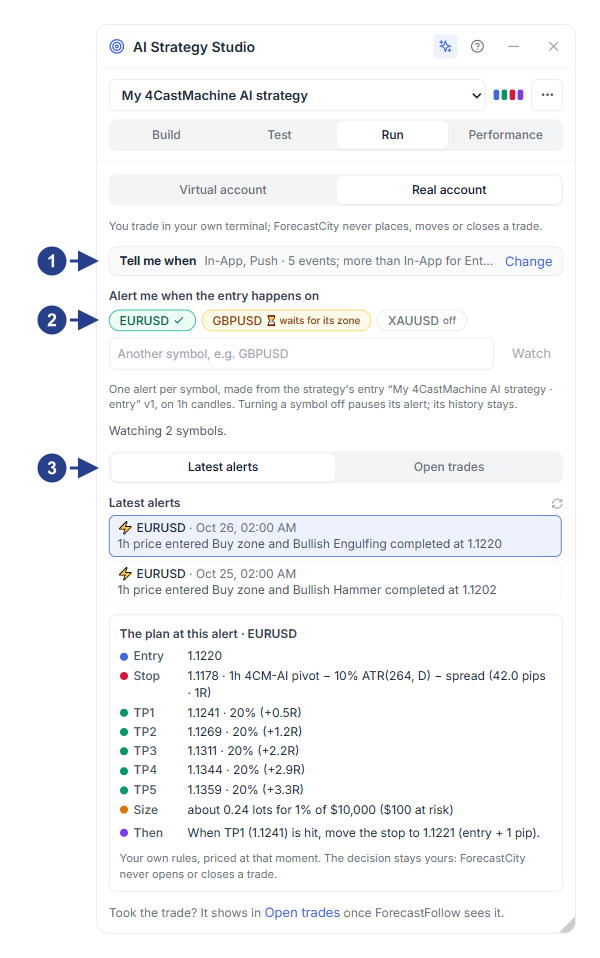
The Tell me when notification bar and Change button for the 5×5 channel table
Watched symbol pills (active,
waits for its zoneoroff) and the add-symbol boxThe Latest alerts and Open trades sub-tabs
Read the trading plan in Latest alerts
Clicking any alert in the Latest alerts list marks its candle with ⚡ on the chart and opens The plan at this alert card with the full trade details:
Entry row: trade direction and price at the moment the alert fired.
Stop row: stop loss price and its distance in pips (
1R).TP1 to TP5 rows: each take profit target price, its
Rmultiple and the share of the position closed.Size row: position size in lots based on your strategy's risk setting.
Then row: trade management rule (such as moving the stop loss to break-even).
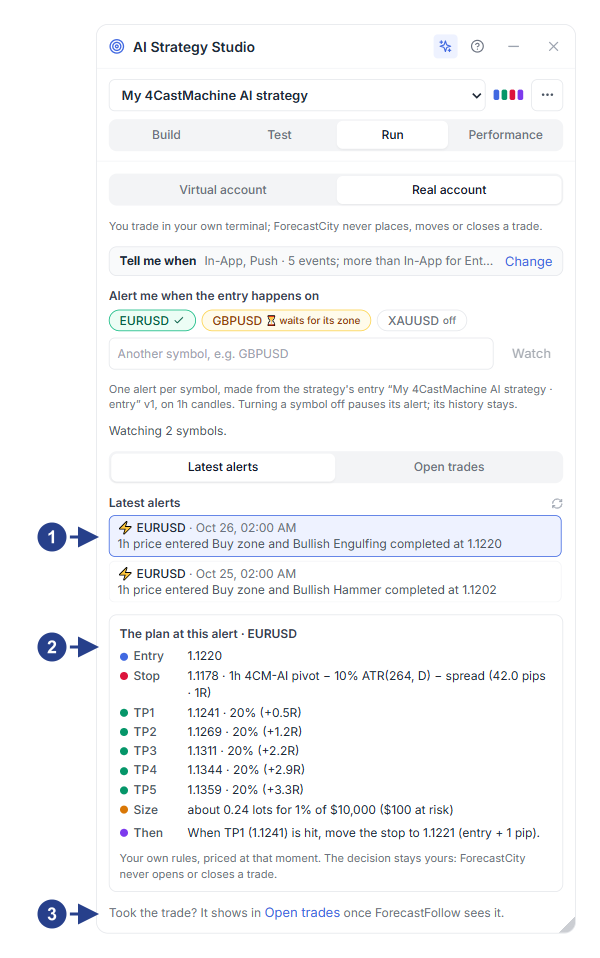
List of recent fired entry alerts across watched symbols
The The plan at this alert card with entry price, stop loss, TP1–TP5 targets, Size and the Then management rule
Direct link to the Open trades sub-tab to follow the open trade