
What you will build
Create an alert that notices when EURUSD crosses above an example level at the close of a five-minute candle. You will choose the condition, check the notification settings, and find the saved alert.
The example level is 1.0900. It is an illustration, not a live market level. For your own alert, use a level you want to monitor and check where price is now before you save.
Open the editor
Open EURUSD in 4CM-AI Charts.
Right-click the price level you want to monitor and choose Add alert on EURUSD at …. The menu carries the price you clicked, so the first row is already filled in.
The alert editor opens as a floating window titled Create alert on EURUSD. Read the symbol in that title before you change anything.
You can also open Alerts and press +, which starts an empty row on the chart symbol. Alt+A opens a draft at the current chart price.
The window has no backdrop, so the chart, the watchlist and the panels stay usable while you work. Drag it by its header to move it out of the way; it opens where you left it last time.
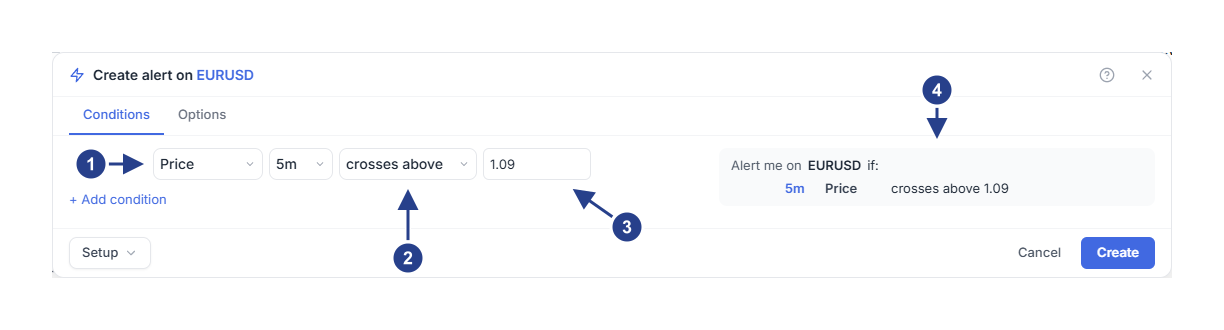
Condition source: pick what the alert watches. Price is one of twelve sources.
Operator: the event or the state to watch for, in the words the summary uses.
Value: the price level to compare against.
Alert me on: read this line back before you save. It describes what you built.
Enter the example condition
A condition is one row, read from left to right: the source, the timeframe, the operator and the value.
In the first dropdown of the row, choose Price.
Set the row timeframe to 5m.
Choose crosses above.
Type 1.0900 in the value box.
Read the Alert me on EURUSD if: panel on the right. It should say 5m Price crosses above 1.09. If a control is still missing something, it carries a faint red ring and Create stays disabled until you fill it in.
crosses above is an event: it happens at the moment price moves through the level. is above is a state: it stays true for as long as price is on the upper side. The difference matters as soon as you combine two conditions, and timeframes, events and repeat alerts explains it.
Check the options
Open the Options tab. Everything that is not a condition lives there: how often the alert may fire, when it ends, its message, its schedule and where it is delivered.
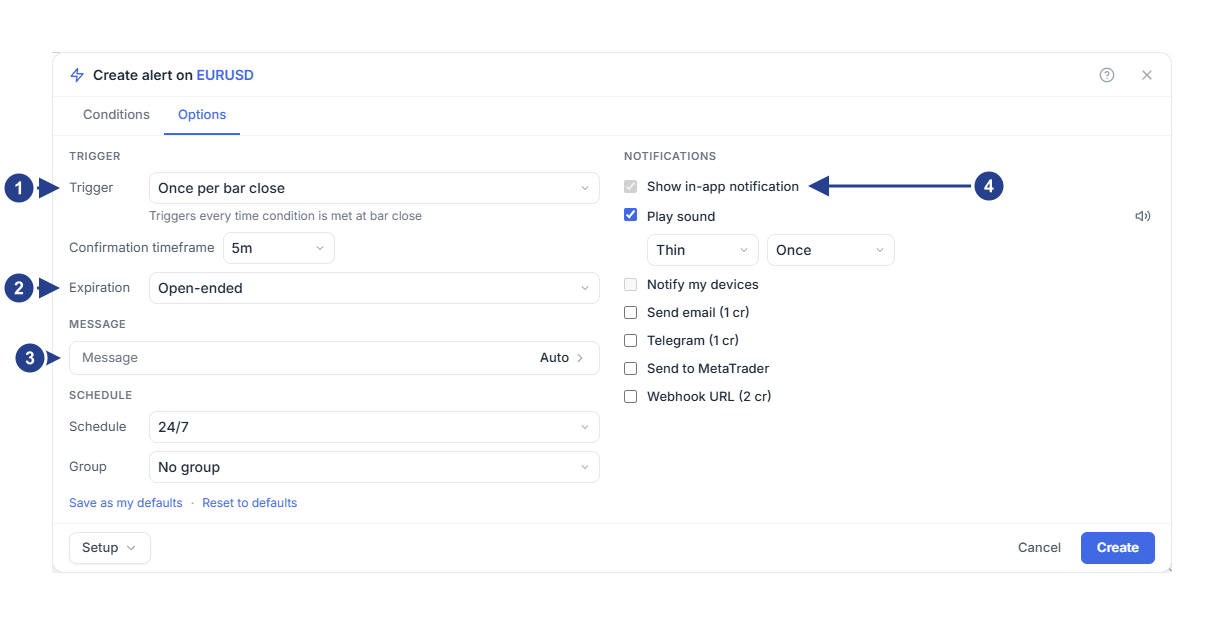
Trigger: how often this alert may fire. The line under it explains the choice.
Expiration: keep it open-ended or give the alert an end date.
Message: closed, because most alerts do not need one. Leave it blank for the automatic message.
Notifications: in-app is always on. Tick the other destinations you want.
Keep Trigger: Once per bar close for this example, and leave the Confirmation timeframe on 5m so the alert is judged on the same candle the row uses.
Leave Expiration on Open-ended, or pick an end date if you only need the alert for a while.
Leave Message closed. A blank message means the automatic one, which already names the symbol, the condition and the price.
Under Notifications, keep Show in-app notification. It cannot be switched off, because it is the copy you can always come back to.
If you want Notify my devices, read the status under it first. A ticked box is not a connection: the browser still has to grant permission, and a phone has to be connected from the phone itself.
Go back to Conditions, read the summary once more, then press Create.
Find the saved alert
Open the Alerts panel and look for the new row. An Active status means the rule is running; it does not mean the condition has already happened.
To change the level later, hover the row and choose Edit. The same window opens, now titled Edit alert on EURUSD, with Save in place of Create and buttons to pause or delete the alert beside the Setup menu.
What to expect
For this example an earlier completed five-minute candle must be on the lower side of the level and a later completed candle must close above it. A spike above 1.0900 that falls back before the candle closes does not count, because you chose a bar-close trigger.
Creating an alert never replays the past. If price is already above the example level, wait for the next qualifying crossing or choose a condition that matches what you actually want to watch.
When the alert fires, open Log in the Alerts panel to see the recorded event. Use Pause when you want to stop monitoring for a while without deleting the rule.
Continue learning
Use price moves and ranges to watch a measured move instead of a level. Read timeframes, events and repeat alerts before you combine several conditions.