
What you will build
Create an alert for a bullish Engulfing or a bullish Morning Star on completed one-hour candles. A pattern is something to look at, not an instruction to trade.
One row can hold several patterns. It completes when any of them completes, subject to its trend filter and to the rest of the alert.
Choose your patterns
Open the symbol and start an alert from Alerts, +.
Choose Candles as the source.
Click the pattern button. It reads Pattern… while the row is empty and 2 patterns once you have chosen some.
In the Bullish group, tick Engulfing and Morning Star.
Close the chooser and check the count on the button.
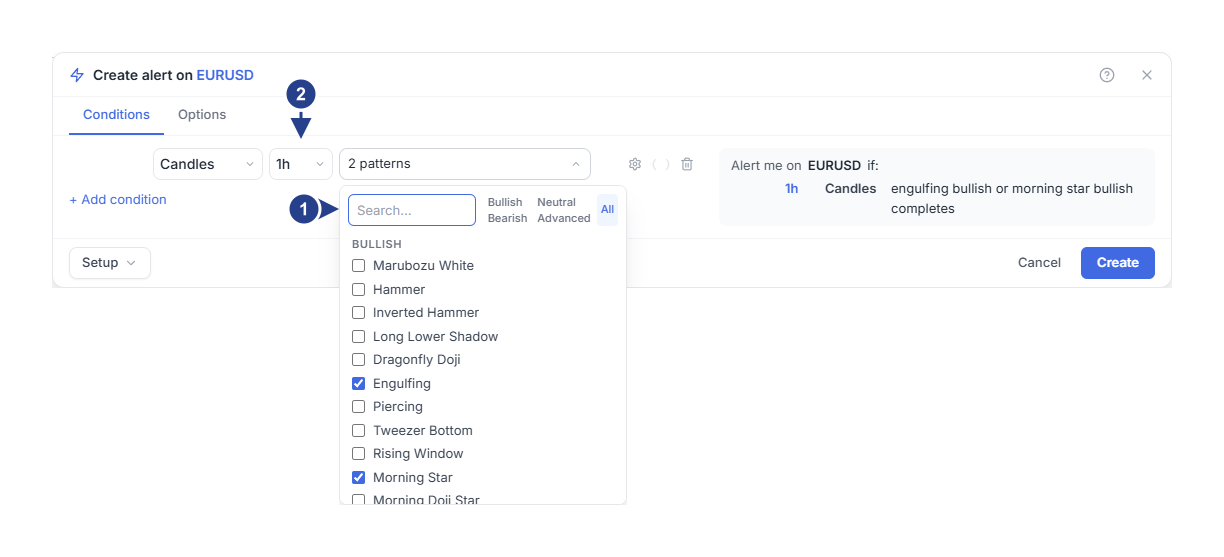
Search, or narrow the list with Bullish, Bearish, Neutral or Advanced. The filters never tick a pattern.
Timeframe: the candles the pattern must complete on.
The chooser lists the catalogue in four groups. A short search box sits at the top with Bullish, Bearish, Neutral, Advanced and All beside it. Those filters only narrow the list; they never tick or untick a pattern, and the list opens on All every time.
The group matters. Many names exist in a bullish and a bearish version, so tick the one under the group you mean. Searching a name does not change the direction of something you already ticked.
Choose at least one pattern and at most twenty, and check the count on the button before you save.
Set the timeframe and the trend filter
Set the row timeframe to 1h.
Hover the row, open its Details with the gear, and leave Trend filter on No detection for this first example.
On Options, choose Once per bar close and set the Confirmation timeframe to 1h.
Review the message, the expiration and the notifications, then press Create.
The trend filter offers SMA50, SMA50, SMA200 and No detection. The moving-average choices apply the detector's own trend check to the patterns that need one. No detection removes that extra check.
The detector needs enough candle history for the patterns and for the trend rule. A long trend filter can need far more history than the few candles in the pattern itself.
Start from a pattern on the chart
You can also right-click the Candlestick Patterns indicator, or a detected pattern marker, and use the add-alert item. When the click identifies specific patterns, the new row arrives with them ticked; otherwise you choose them in the editor. Check the list and the timeframe before saving either way.
This is a shortcut for building the condition. It does not create an alert for a pattern that already completed.
What to expect
The alert reads completed candles. An unfinished candle can look like a Hammer and lose the shape before it closes; that is not a completed pattern.
With two patterns ticked, either one satisfies this row. Add another row under and when something else must hold at the same time, for example an RSI is above filter on the same timeframe.
Two patterns on the same timeframe can be two rows joined by and, because they can complete on the same candle. Two moments on different timeframes cannot both be true at once, and the editor refuses that draft with an explanation rather than saving an alert that could never fire.
Check the result
After an event, open Log and compare its symbol and timeframe with the completed candles on the chart. If the chart indicator disagrees with the alert, compare the selected patterns and the trend rule on both.
Use combine conditions to add filters, and timeframes, events and repeats for the difference between a completed pattern and a standing indicator condition.