
Use this tour if you already know what a price alert or an indicator condition is. You will walk the whole workflow once and see where to go for the details. Allow a few minutes; connecting a new notification destination may take longer.
The example watches EURUSD crossing above 1.0900. It is an exercise, not advice. Choose a level that makes sense for your own analysis before you save a real alert.
1. Open the editor
Open 4CM-AI Charts, select EURUSD, click Alerts in the top toolbar, then press + in the panel.
One floating window opens for every kind of alert. It has two tabs, Conditions and Options, and it always opens on Conditions. There is no backdrop, so the chart stays clickable and your draft survives while you look at the candles.
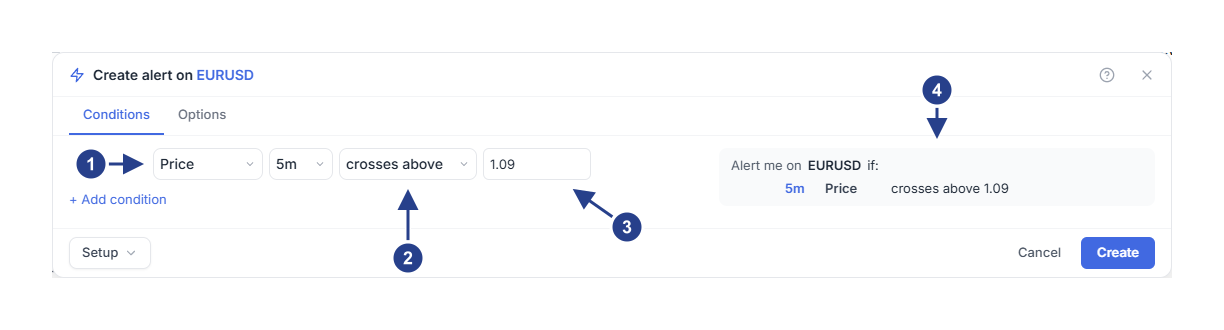
Condition source: pick what the alert watches. Price is one of twelve sources.
Operator: the event or the state to watch for, in the words the summary uses.
Value: the price level to compare against.
Alert me on: read this line back before you save. It describes what you built.
2. Build the condition
Choose Price, set the row to 5m, choose crosses above and enter 1.0900. The summary on the right repeats the row in the same words, so what you read is what will be saved.
The source dropdown holds everything an alert can watch: 4CM-AI, Candles, Price, Line, then RSI, EMA, SMA, ATR, MACD, Bollinger, Stoch and Volume. Changing the source rebuilds the rest of the row, which is why you pick it first.
For other targets see price moves and ranges, chart lines, rectangles and Fibonacci levels, RSI and moving averages, multi-line indicators, volume and candlestick patterns.
3. Set timing and delivery
Open Options. Keep Once per bar close for a simple price example, set Expiration to the lifetime you want, and tick the destinations you need under Notifications.
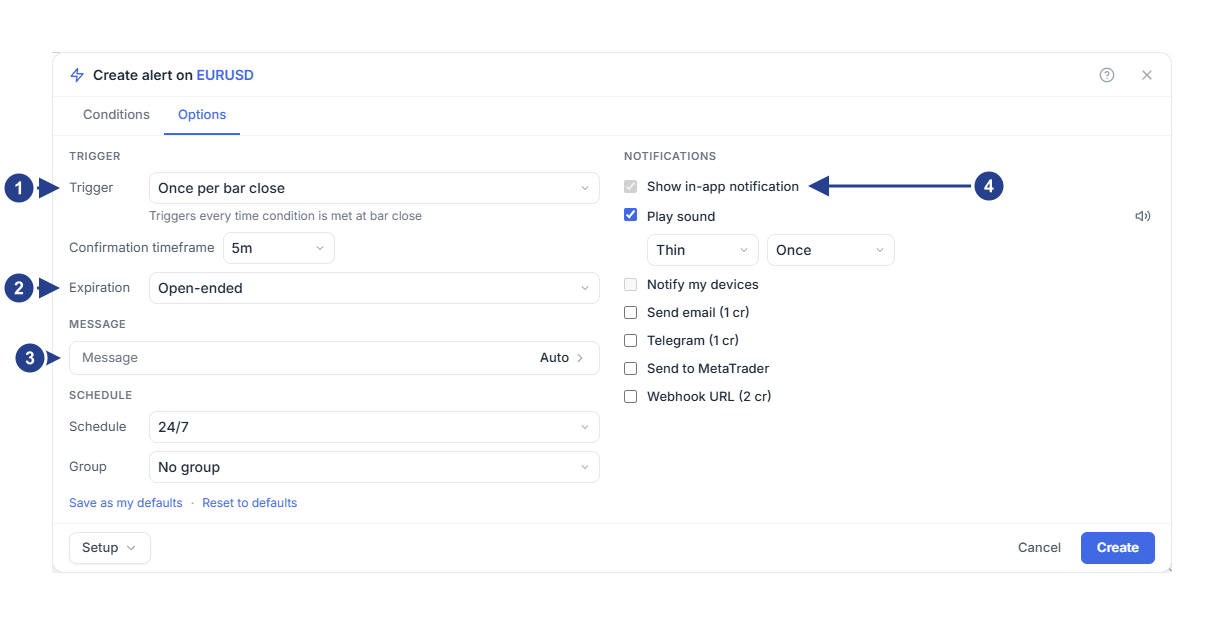
Trigger: how often this alert may fire. The line under it explains the choice.
Expiration: keep it open-ended or give the alert an end date.
Message: closed, because most alerts do not need one. Leave it blank for the automatic message.
Notifications: in-app is always on. Tick the other destinations you want.
In-app delivery is always on and is the copy you can come back to. For alerts you want while the chart is closed, follow notification delivery to connect a device, Telegram or email. A ticked box is not a connection; each destination shows its own status.
Open Message only when you want your own words. Blank means the automatic message, which already names the symbol, the condition and the price. Webhook receivers have their own URL, format and body, covered in messages and webhooks.
Two links at the bottom of the tab save time later: Save as my defaults stores this trigger, expiration and delivery for every new alert you create, and Reset to defaults puts them back.
4. Save, then verify
Go back to Conditions, read the summary, then press Create. Check the symbol, the condition, the timeframe, the trigger, the expiration and the destinations before you do.
Find the saved row in Alerts. Active means the rule is enabled, not that the condition has happened. Edit reopens the same window on that alert, with a pause button and a delete button next to Setup.
When the rule fires, open Log to see the recorded event. Keep two questions apart: did the condition trigger, and did the notification reach its destination. The troubleshooting guide walks through both.
5. Extend the alert only when needed
Press + Add condition to add a second row, or press Enter in a box you type into to add one right below it. Row two onwards starts with its own and or or, and changing it changes that row only.
and is checked before or, and the editor draws the parentheses that follow from it, so the rows and the summary always show which conditions are checked together. Hover a row for its actions: the gear opens its Details when it has any, ( ) puts it in parentheses with the next row, and the bin removes it. See combine conditions before you build a larger rule, and timeframes, events and repeat alerts before you mix timeframes.
With an active membership, the 4CM-AI source adds forecast rows beside the technical ones, so one alert can wait for the forecast and for your chart conditions together: see forecast changes, forecast zones and multi-timeframe combinations.
Keep the alert list useful
Pause rules you want to keep, edit them when your analysis changes, and remove the ones you no longer need. The Setup menu in the footer saves a set of conditions for reuse without creating an alert. Groups and watchlist bindings organize larger collections. Follow manage alerts for those workflows.
If you want a guided practice sequence from here, switch to step-by-step guides.