
On the virtual accounts page, AI Strategy Studio and AI Trading Journal work together so you can practice and build a verified track record without risking real money. Manage all your virtual accounts, strategy runs, prop challenges (Challenges) and competitions (Competitions) in one place. Adjust open trades with the Manage button or on the chart, measure your manual edits against pure AI execution, and share a public page verified by a hash chain (SHA-256).
Example: on the virtual accounts page, open your virtual account and set a 3% daily drawdown limit on the Settings tab. On the open trades tab, check your manual edits on the Your manual actions this month card and turn on your verified public page link.
Navigate the virtual accounts hub
When you open the virtual accounts page, four tabs appear at the top of the page:
Accounts tab: lists all your virtual accounts (standard, challenge and competition accounts) with balance, equity, net profit, open trades and the New virtual account button.
Strategies × accounts tab: a matrix table showing which strategies run on which virtual accounts. Each cell displays net profit, closed trades, win rate (
% won) and averageR(such as12 closed · 67% won · avg +0.65R).Competitions tab: lists virtual-money competitions you can join in one click to get a dedicated virtual account with identical rules and track your rank.
Challenges tab: ready-made prop challenge templates with profit target, daily loss limit, max drawdown, minimum trading days and profit consistency rules. Test your strategy before buying a real challenge, and click Start a new attempt if an attempt fails.
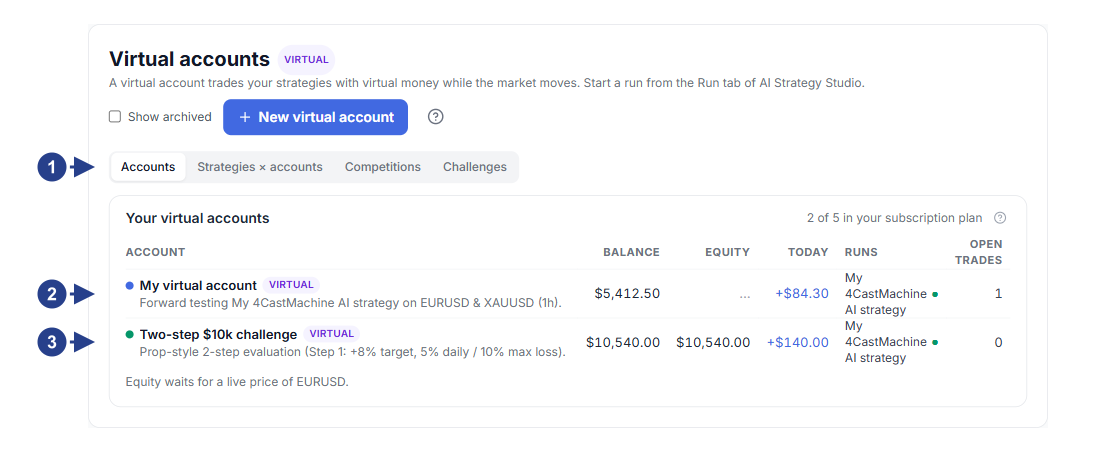
Tab strip for the four main views: Accounts, Strategies × accounts, Competitions and Challenges
Standard virtual account row with balance, equity, today's profit or loss and active run count
Practice challenge account row with rule progress
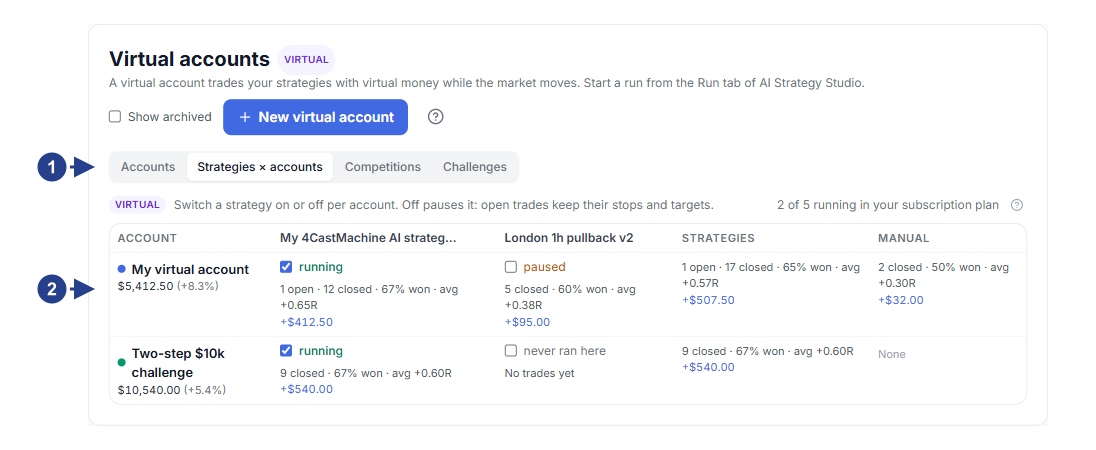
Strategies × accounts tab for comparing strategy performance across virtual accounts in a matrix
Table cells with the run toggle, closed trade count, win rate (
% won), averageRand net profit
Inspect trades, events and manual interventions
Click any virtual account to see the top summary strip with balance, equity, today's result, max drawdown and open risk, plus six tabs:
Open trades tab: lists open virtual trades with the New trade button and the Manage button on each row. From the Manage menu, close the trade (Close now), close part of the size (Close part, such as
25%,50%or75%) or move the stop to entry (Move stop to entry). When you edit a strategy trade by hand, the forward test runs a"strategy only"shadow trade in the background. The Your manual actions this month card then shows how many dollars andRyour manual actions added or cost.History tab: lists closed trades with entry price, the EXIT column (exit price, or weighted average with the
avgbadge on multi-target trades), lot size, dollar result,Rmultiple and exit reason.Event log tab: an append-only ledger of all account activity in order, which you can download with Export CSV.
Equity and Report tabs: the equity curve chart and the full analytics report for the account in AI Trading Journal.
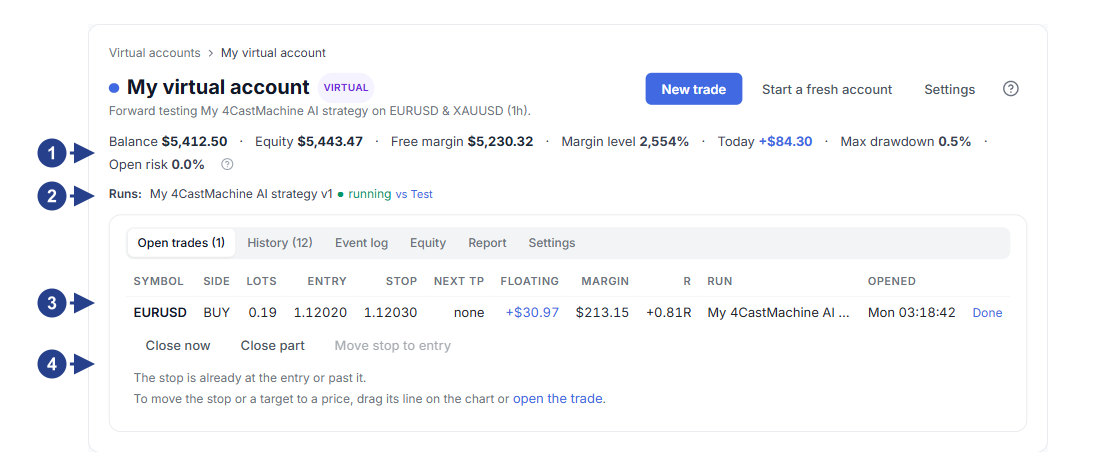
Live account summary strip: balance, equity, free margin, today's result, max drawdown and open risk
Active strategies row on the account with the vs Test comparison link
Open trades table (Open trades) with the Manage button at the end of each row
Manage manual action strip: full close (Close now), partial close (Close part) and moving the stop loss to entry (Move stop to entry)
Set risk guardrails and share a verified page
On the Settings tab of any virtual account, you can manage protective risk rules, trading fees and track-record sharing:
Risk limits (Risk limits): set a daily loss limit (Daily loss limit), max total drawdown (Max drawdown) and maximum open trades. If the account hits your daily or total drawdown limit, open trades close automatically and the account is paused (
halted). Click Resume trading to reactivate the account.Custom costs per symbol (My own costs per symbol): besides picking a ready profile, you can set spread, commission and overnight Swap rates for buy (
long) and sell (short) positions per symbol.Verified public page with SHA-256 and Telegram notifications: turn on Public page to get a verified share link whose hash chain anyone can check with Check the log. Turn on Send this account's opened and closed trades to Telegram to send trade notifications straight to your Telegram.
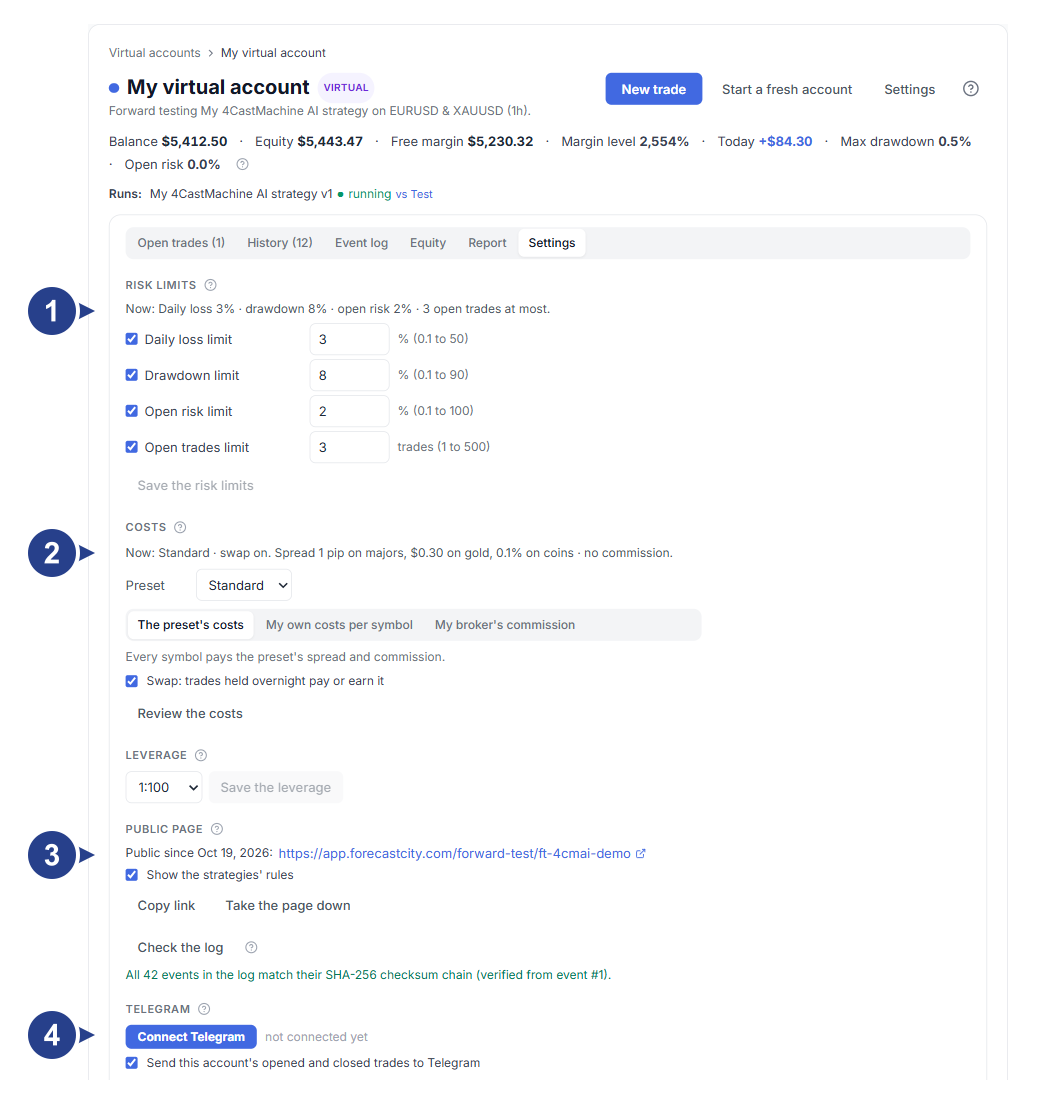
Protective risk limits section (Risk limits): daily loss limit and max drawdown with automatic closing of open trades
Trading costs section (Costs): fee profile selector and per-symbol spread, commission and overnight Swap settings
Public page and log verification section (Public page): share link and SHA-256 hash-chain check with the Check the log button
Telegram notifications section (Telegram): toggle for sending opened and closed trade notifications for this account to Telegram