
The Web App has several parts, and each part has its own job: the chart and the forecast, alerts, the trading journal and your account. When you know where each part is, you start every task in the right place instead of searching through menus.
The two pictures below are a map of these parts: first the chart page, then the profile menu. At the bottom of this page, you find the getting-started guides in order.
The parts of the Web App
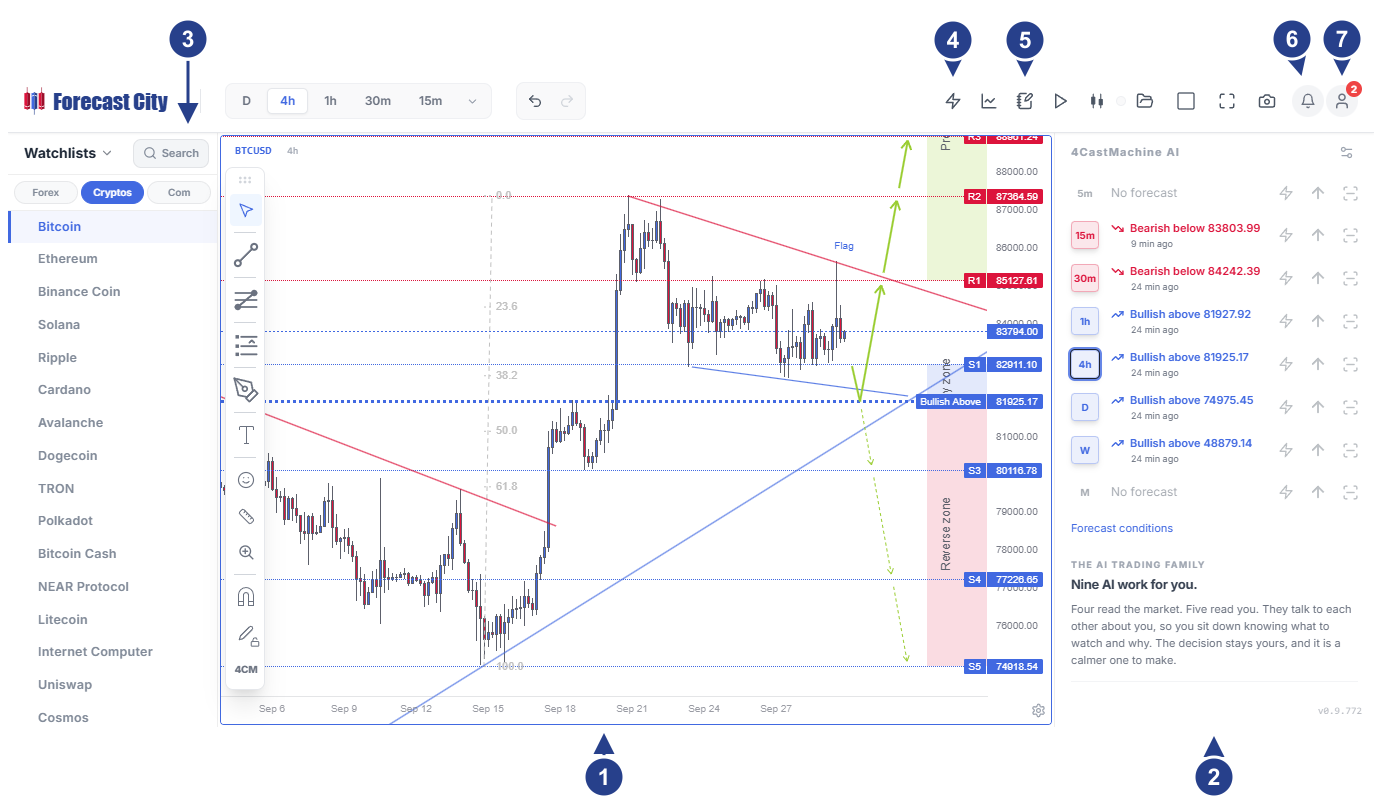
4CM-AI Charts: the chart, indicators, drawing tools and layouts with several charts. With Bar Replay, you replay the market's past candle by candle. The chart page opens after you sign in.
The forecast panel, titled 4CastMachine AI: the forecast of each timeframe in one row, with its direction, its pivot and how fresh it is. The lightning button of a row creates a forecast-change alert without opening the alert editor.
The Watchlists panel: the symbols of the markets you chose, and the watchlists you build yourself.
The lightning icon (Alerts): alerts that watch price, an indicator, a line or a forecast for you. The Alerts tab lists them, and the Log tab shows each time one fired.
The Journal icon: shows your open trades from the AI Trading Journal on the chart.
The bell (Notifications): the messages and announcements ForecastCity sent you.
Your account icon: opens the profile menu, shown in the next picture.
On most laptops, the top toolbar shows only icons. Rest the mouse on an icon to see its name.
The profile menu
The profile menu opens when you click your account icon, at the right end of the top toolbar.
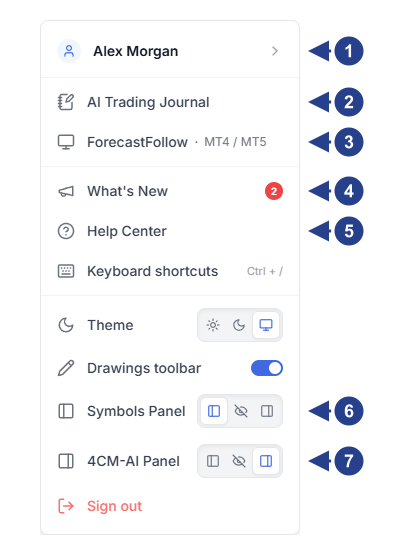
Your name: rest the mouse on it to open your account menu. Your account holds your profile and site language, your markets and watchlists, display settings, notifications, MetaTrader accounts and your subscription.
AI Trading Journal: AI Journalist uncovers your strengths and weaknesses, and those of your strategies, better and faster, and helps you become a better trader.
ForecastFollow · MT4 / MT5: shows the 4CM-AI forecasts on your MetaTrader 4 and MetaTrader 5 charts. ForecastFollow also sends your trades to the journal and tells you about your alerts inside MetaTrader.
What's New: news about the product, whenever a new feature arrives.
Help Center: these guides, in a panel beside the chart, so the chart stays open.
Symbols Panel: places the Watchlists panel on the left, hides it or places it on the right.
4CM-AI Panel: places the forecast panel on the left, hides it or places it on the right.
Start here
What is ForecastCity? The all-in-one AI platform for traders. Our nine AIs, what each one does for you, and how they work together to help you become a better trader.
Your first login: three minutes to your first alert. From accepting the terms to creating your first alert, step by step.
Continue in other guides
Alerts: start here. Build every kind of alert, with examples and pictures.
Keyboard shortcuts. Work faster on the chart, with both hands.