
Under Run → Virtual account in AI Strategy Studio, AI runs your strategy live (forward testing) without coding or a virtual server. Pick your strategy (or ask AI Trading Assistant to start it) so it runs 24/7 with virtual money on live prices. Whenever your entry condition (including 4CastMachine AI zones) fires, the forward test opens a virtual trade with spread, commission, swap and slippage costs. It then manages your stop loss, targets (TP1 to TP5), break-even and trailing stop in real time.
Example: open the virtual account view on the Run tab. Start your strategy on a $5,000 virtual account with the standard cost profile on EURUSD and XAUUSD. Add a shadow variant with management off under Compare with a variant. Then click Forward vs Test on the Performance tab to compare live results with the 90-day test.
Choose or create a virtual account
Open your strategy in AI Strategy Studio and go to the Run tab.
In the Account list, pick a virtual account or create a new one. Set the name, starting balance (
$1,000to$1,000,000, default$5,000) and Costs profile (Standard, Raw-ECN, Crypto or No costs).In the Symbols box, choose your symbols. In Size of each trade, pick how each trade is sized (strategy risk, balance percentage or fixed lots).
Turn on Ask me before each trade for manual approval with the Take it button, or Skip entries around high-impact news. Then click Start the run.
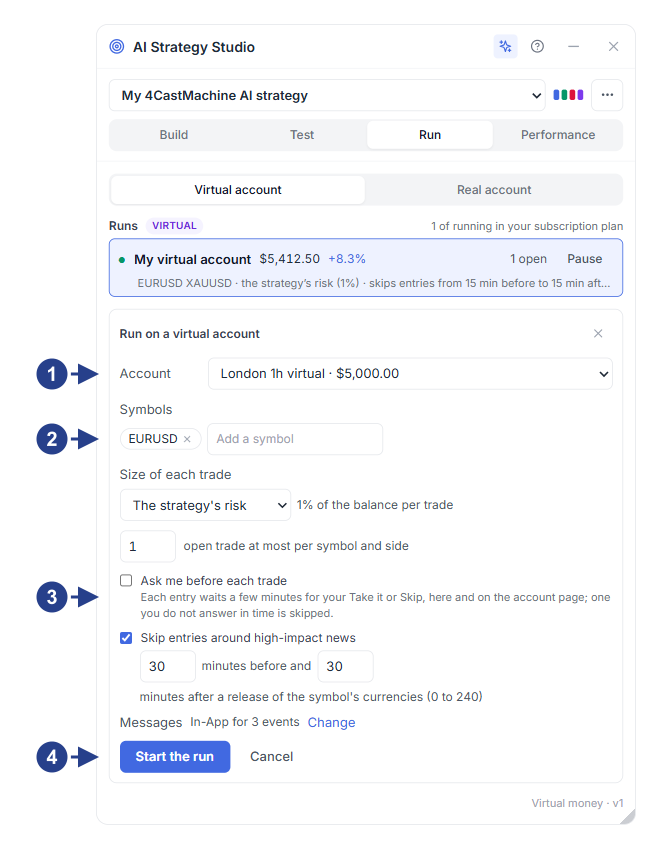
Selecting a virtual account from the Account list or creating a new one
Choosing watched symbols (Symbols) and the trade sizing rule (Size of each trade)
Ask me before each trade and high-impact news filter (Skip entries around high-impact news) options
Notification channel picker and the Start the run button
Manage an active run and compare variants
Once a run starts, its status card appears on the Run tab:
Run controls: click Pause to stop new entries (and Resume to continue). Click Open account to open the virtual account in the journal, or click New run to add another virtual account.
Compare with a variant section: add up to three shadow variants on the same market entries with a different size, direction or management rule. Open the Side by side table to see which setting gives better net profit and average
R.Forward vs Test comparison: on the Performance tab (under Virtual accounts), click Forward vs Test to compare live virtual results with the 90-day candle test.
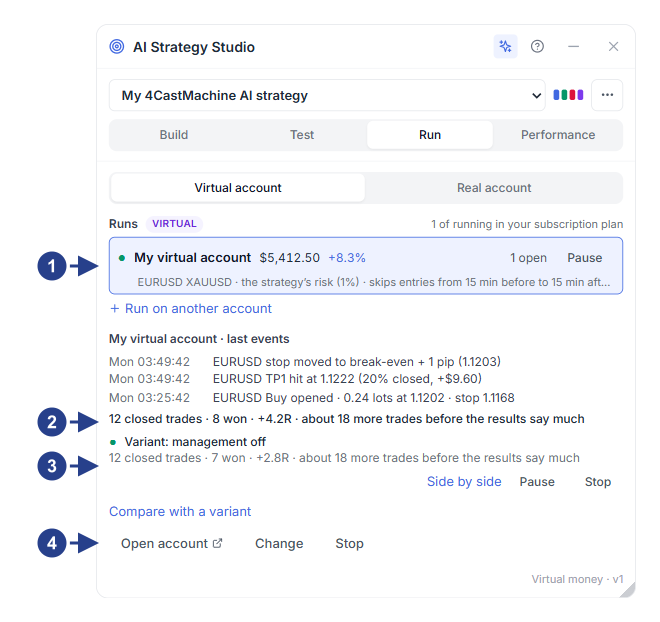
Virtual account switch and active runs list with the Pause / Resume button
Trade performance summary and latest forward test activity
Compare with a variant section for running parallel shadow variants
Open account, Change and Stop buttons for the selected run
Good to know
When you save a new strategy version on the Build tab, active runs use the new version for future entries. Open trades keep the trading plan and rules they opened with.
Until a run closes 30 trades, a note on the run card shows how many more trades are needed for a full sample.