
In this hands-on tour, in under five minutes you build a complete EURUSD strategy in AI Strategy Studio with AI, adjust its lines on the chart, test it on the Test tab, run it on a virtual account and a real account on the Run tab, and compare your real result against untampered execution in the Performance tab and AI Trading Journal.
Example in this tour: on the 1-hour (1h) EURUSD chart, build the default 4CastMachine AI strategy template with 1% risk per trade, run it on a $10,000 virtual account, and watch EURUSD for entry alerts at the same time.
Step 1: build a strategy in seconds from ready templates or AI Trading Assistant
Click St. Studio in the top toolbar to open AI Strategy Studio.
Click New and choose one of the four standard trading styles or the ready-made 4CastMachine AI strategy template under From my trading style (or click ✦ and tell AI Trading Assistant your strategy so it builds it for you).
Confirm the trade side and strategy name, then click Create to open the strategy on the Build tab.
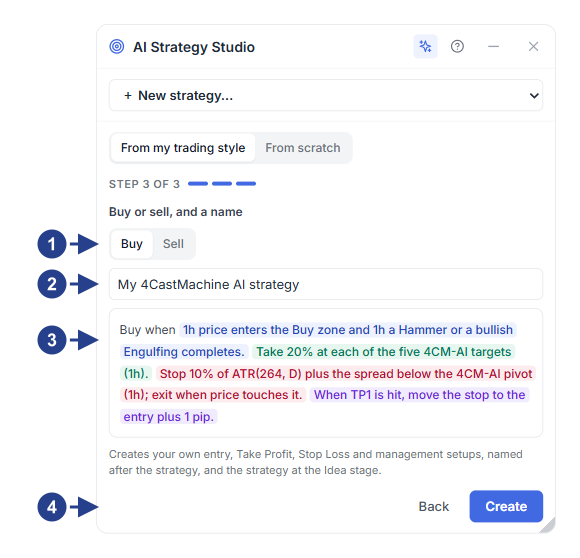
Trade side choice (Buy or Sell) for the new strategy
Strategy name box
Full preview of the colored strategy sentence before creation
Create button to build the setups and open the Build tab
Step 2: edit the four strategy parts and adjust chart lines with your mouse on the Build tab
On the Build tab, click any of the four colored sentence parts (blue entry, green take profit, red stop loss and purple management) to open its focused setup panel, and click ‹ The strategy to return to the overview.
Click + risk per trade and pick your risk percentage per trade (for example,
1%) so the lot size is calculated automatically from the stop distance.Under If you enter now, on the chart, view the entry, stop loss and target levels on the current candle and move any line with your mouse using the ⇕ handles.
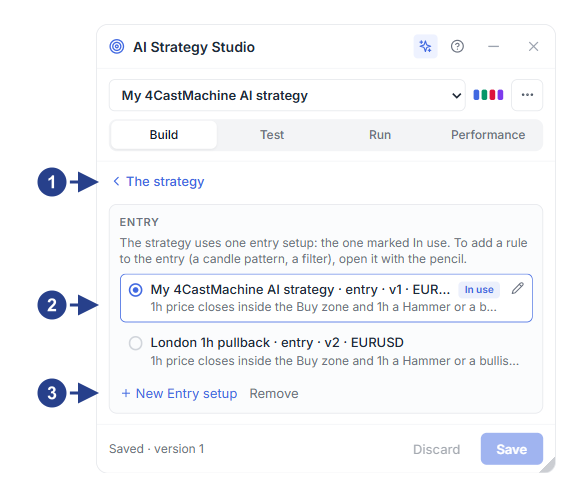
‹ The strategy back button to return to the strategy sentence
Saved setups list with the In use badge and edit pencil icon
+ New … setup button to create a new setup
Step 3: test on past candles and replay trades on the Test tab
Open the Test tab and set the time range (from
60dto1yor a custom date), starting balance and fee model under Money. (The Test tab will be released to everyone in the near future.)Review net profit, win rate, profit factor and the balance curve on the Result card, and click Replay on any trade to watch its candle-by-candle action on the chart.
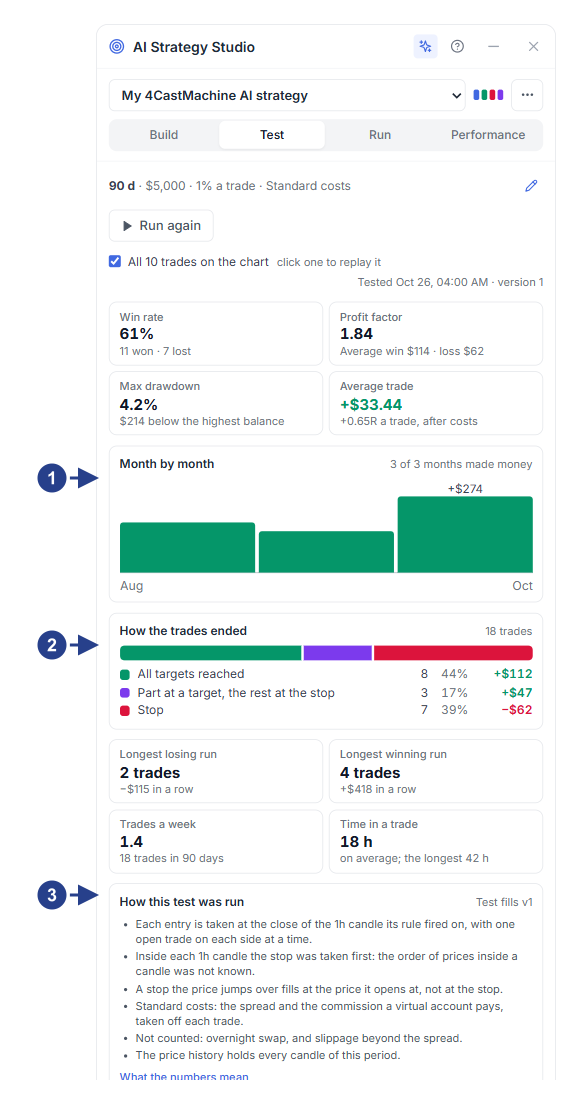
Bar chart of month-by-month (By month) or week-by-week (By week) performance
How the trades ended card (breakdown of target exits, partial closes and stop loss)
How this test was run card with candle fill, fee and price gap assumptions
Step 4: run a live forward test on a virtual account on the Run tab
Open the Run tab and set the top switch to Virtual account.
Select (or create) a virtual account, choose your symbols and position sizing rule, and click Start the run so the strategy trades the live market with virtual money and real trading costs.
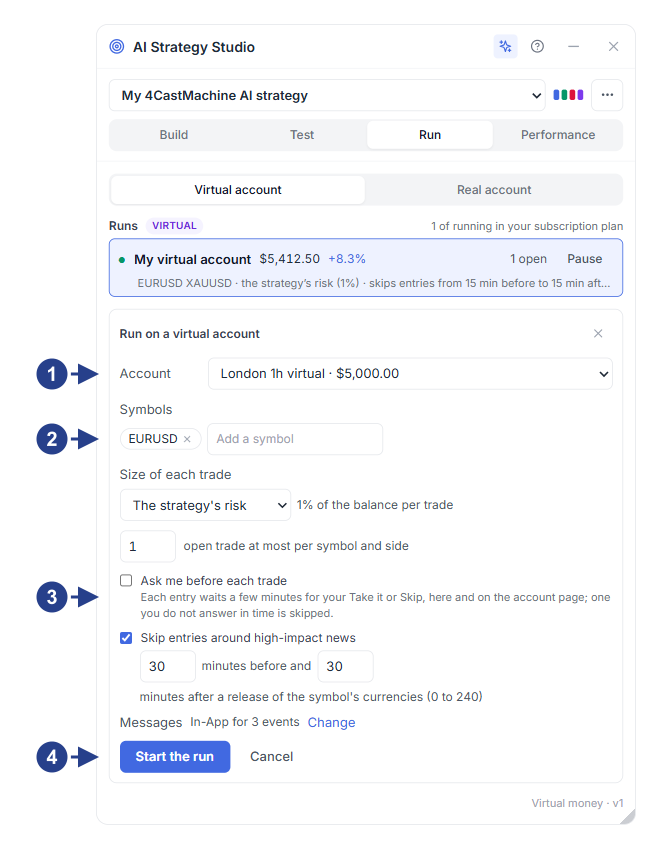
Selecting a virtual account from the Account list or creating a new one
Choosing watched symbols (Symbols) and the trade sizing rule (Size of each trade)
Ask me before each trade and high-impact news filter (Skip entries around high-impact news) options
Notification channel picker and the Start the run button
Step 5: watch symbols and follow open trades on a real account on the Run tab
On the Run tab, set the top switch to Real account and click Change in the Tell me when bar to configure your notification channels.
Add your chosen symbols to the watch list so as soon as the entry condition lines up, the complete trading plan (entry, stop loss,
TP1toTP5targets and lot size) is ready under Latest alerts.Once a trade is open in your connected ForecastFollow account, follow each step and your break-even and trailing-stop reminders on the chart under Open trades.
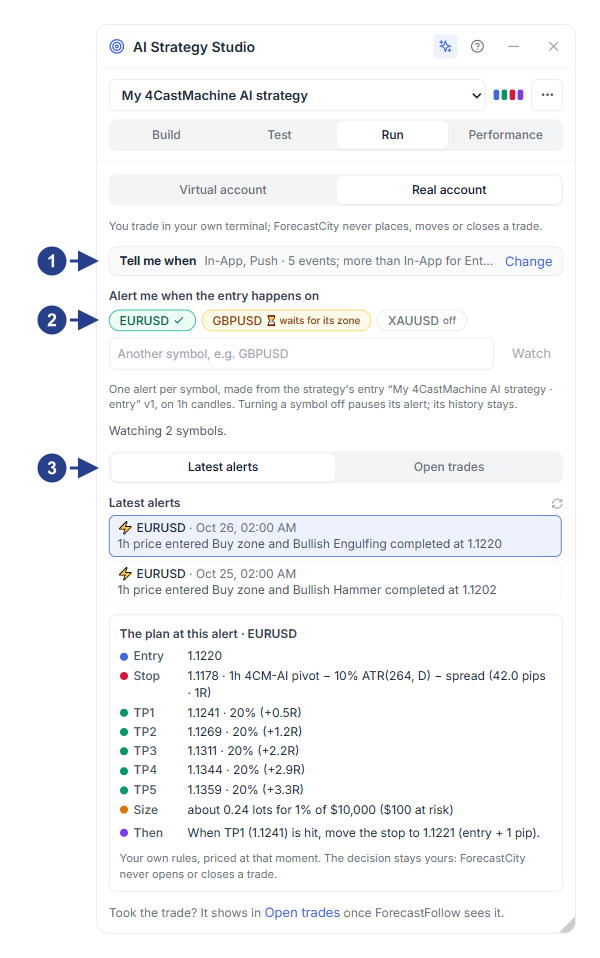
Tell me when notification bar and Change button for the 5×5 channel table
Watched symbol pills (active,
waits for its zoneoroff) and add-symbol boxLatest alerts and Open trades sub-tabs
Step 6: compare real results against untampered execution in Performance and Journal
Open the Performance tab and switch between Your trades (your real account trades in the journal) and Virtual accounts.
On the Followed the strategy card and the Strategy check card in AI Trading Journal, see how closely you followed each of the six strategy parts, what result you achieved, and what result you would have achieved if you had followed the strategy without manual tampering.
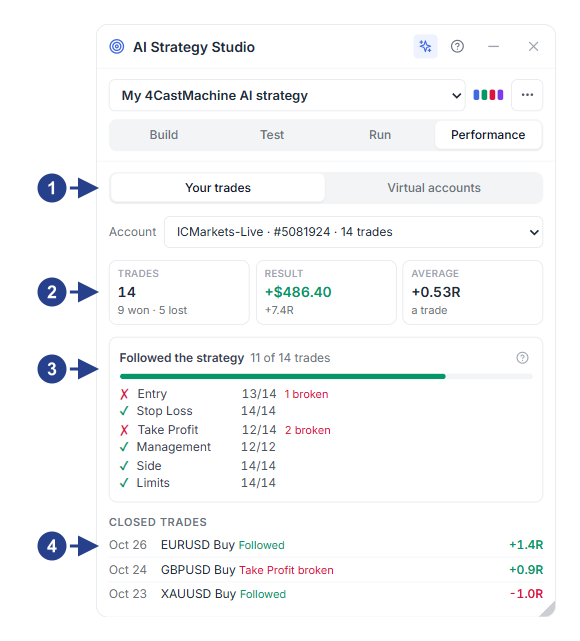
Switch between Your trades and Virtual accounts and the trading account picker
Performance summary cards: trade count (Trades), net result (Result) and average trade
Followed the strategy card and adherence breakdown across all six strategy parts
Closed trades list with links to the journal check card