
Keeping risk consistent on every trade is one of the keys to trading success; AI Strategy Studio works directly with AI Trading Journal to calculate your position size simply and in real time. You no longer need a calculator or pip-value tables for each symbol; set your risk percentage or dollar amount once and the platform automatically calculates the exact position size (Lots) on every trade from the distance between entry and stop loss.
Example: your account balance is $10,000 and you set risk per trade to 1% ($100). If your first trade on EURUSD has a 20 pips stop loss, the studio calculates 0.50 lots; if your next trade has a 50 pips stop loss, it automatically lowers the size to 0.20 lots so your risk stays at $100.
Set risk per trade in the Build tab
In the Build tab, click the dashed + risk per trade button (or the risk link at the end of the strategy sentence) to open the risk panel.
Select one of the risk percentage preset chips (
0.5%,1%,1.5%or2%) or enter a custom percentage or dollar amount.Choose your account balance source (Balance source): pick one of your connected accounts in AI Trading Journal (a real account connected with ForecastFollow or a Virtual Account) so the live balance is read automatically, or type a fixed balance amount.
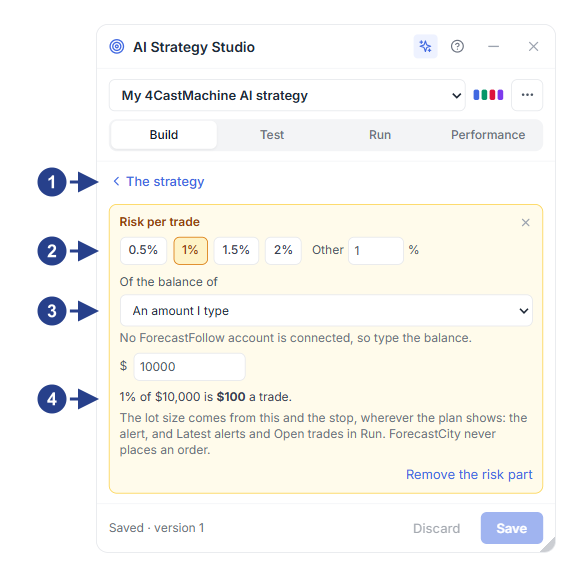
The ‹ The strategy back button at the top of the risk panel
Risk percentage preset chips (
0.5%to2%) and custom percentage boxSelecting a connected ForecastFollow account or typing a custom balance amount
Dollar risk per trade and the Remove the risk part button
Where the calculated size is used
In the Build tab: the If you enter now, on the chart table displays the exact position size for the current candle.
In the Test and Run tabs: the historical test engine and the live forward test engine on a Virtual Account open every trade using this sizing rule.
Under Latest alerts: whenever an entry alert fires, the exact lot size is ready in the Size row.
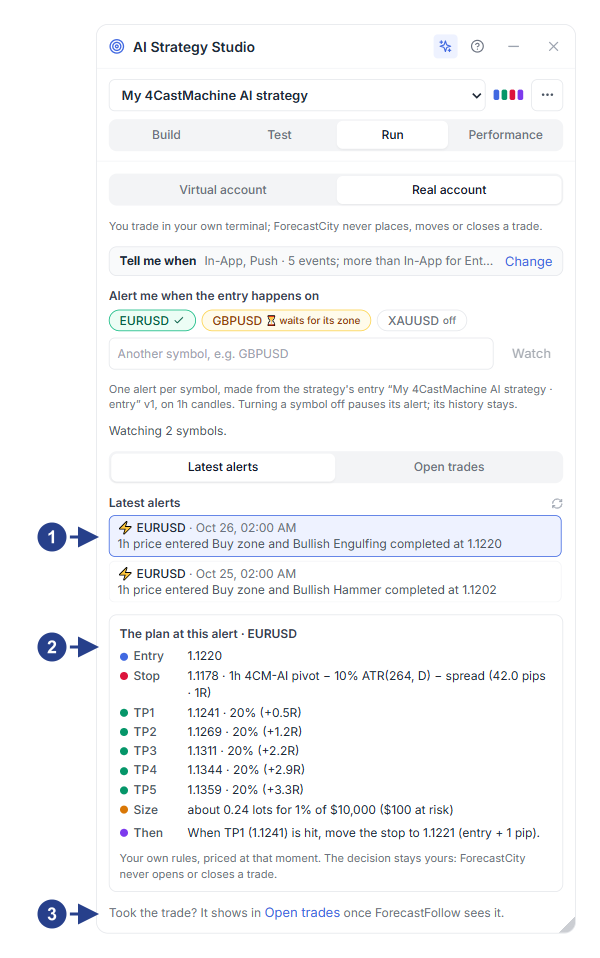
List of recent fired entry alerts across watched symbols
The The plan at this alert card with entry price, stop loss, TP1-TP5 targets, Size and the Then management rule
Direct link to the Open trades sub-tab to follow the open trade