
You will trace an alert from its saved condition to its recorded event and its destination. Start from the event you expected instead of creating another alert.
Example: a phone stayed quiet
Suppose you expected a EURUSD alert at the close of a fifteen-minute candle and your phone showed nothing. The first question is whether the condition produced a trigger at all.
1. Open the log
Open Alerts, then Log. Find the alert by its symbol and message and compare the recorded time with the event you have in mind. The log lists triggers, not every price update.
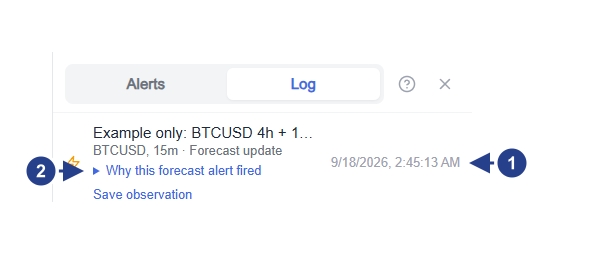
Event time: compare the recorded time with the event you are investigating.
Why this forecast alert fired: expand the explanation to read the captured evidence.
If there is a matching event, jump to step 4. If there is none, inspect the saved alert next. A quiet phone alone does not say whether the condition failed or the message could not arrive.
2. Check the saved watch
Go back to the list and clear the filters if you need to. Check whether the alert is active, paused, finished after its one allowed trigger, or marked with an error.
Open Edit and read the whole rule. The summary beside the rows says it in one place: symbol, timeframe, source, operator and value for every row. Confirm those, then check the Options tab for the trigger and the confirmation timeframe.
For a crossing, ask whether price actually crossed after the watch was armed. Starting above a level is not the same as making a new crossing. For a bar-close rule, look at the completed candle: a level visited inside the bar can be left behind by the close. A line break or bounce needs its own confirmation as well. Compare the exact operator rather than the shape of the chart.
3. Check when evaluation was allowed
Review Expiration and the Schedule on the Options tab, and check whether the alert sits in a muted group. Read any message about account access or alert limits that appeared when you created or restarted it.
Some instruments are quiet outside their market hours. A 4CM-AI condition also needs fresh forecast data and a live price. If the editor reports a failed check, press Retry and read the message. "Not available" for a zone means the chosen source has no usable zone right now; it is never an invitation to substitute one from another timeframe.
An alert marked with an error is telling you something specific: a 4CM-AI alert whose technical part can no longer be read is marked rather than left waiting silently. Open it, fix the row and save.
4. Check the destination
If the event is in the log, the condition worked and the question is delivery. Reopen Options and check the destination: device permission for Notify my devices, the connected state for Telegram, the address on your account for email, the EA and its settings for MetaTrader, and the URL, format and receiver response for a webhook.
Paid destinations also need credits and the right access. An on-screen notification arriving does not prove an outside destination was connected.
5. Read a forecast alert's evidence
For a 4CM-AI event, expand Why this forecast alert fired, read the description, then expand Original evidence.
Each recorded event keeps its own time. A zone visit can happen well before another condition completes the alert, so the chart may have moved on since. Read the captured bounds and source timeframes in the entry itself rather than checking them against today's chart. A combined forecast alert has no single execution price.
Open chart takes you back to the context.
6. Save an eligible observation
For a captured zone or combined forecast event, Save observation keeps the evidence if you have AI Trading Journal access, and Open saved observation takes you to it for your notes.
The saved item preserves the original evidence. It is an observation, not a trade, and this release does not offer it for every ordinary price or indicator trigger.
When the editor refuses a draft
Some problems are caught before an alert ever exists, and the message says what to change:
Two moments on different timeframes joined by and can never be true together, so the editor asks you to use or or to make one of them a condition that stays true.
4CM-AI rows must join other rows with and, share one join among themselves, and stay out of parentheses that hold technical rows.
An alert holds up to ten conditions, and parentheses can only nest a few levels deep.
One 4CM-AI direction and one zone per timeframe.
An alert carrying about ten chart lines is too large to save; remove a row or split it in two.
An alert cannot change between 4CM-AI and other conditions after it is created; make a separate alert instead.
If a condition is still unexplained, note the symbol, the timeframes, the local time you expected and the saved message before you contact support. Those four make the event findable.
Continue with timing and expiration or forecast combinations.