
What you will adjust
Use the alert display settings to keep a busy chart readable. In this example you will inspect a saved EURUSD price alert, move its level, turn the browser sound down and choose which details the alert list shows.
These settings change how alerts look. Hiding an alert line does not pause the alert behind it.
Find the settings
Open Alerts in 4CM-AI Charts.
Open Options, then choose Alerts settings…. The chart settings open on their Alerts tab.
You can also right-click an existing price-alert line and choose Alert settings.
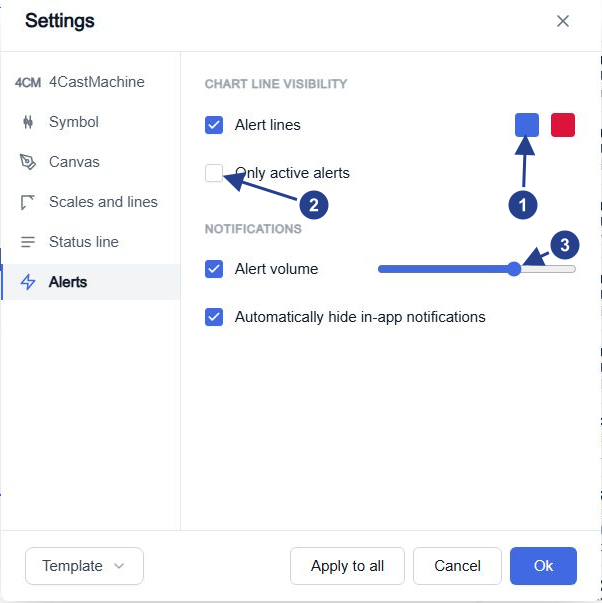
Alert lines: control visibility and choose the two line colours.
Only active alerts: hide completed lines; paused lines remain visible.
Alert volume: adjust browser sound with the slider or mute it with the checkbox.
Tidy the chart
Under the line visibility section, keep Alert lines on if you want to see your saved price levels, and use the two colour controls to change how they look.
By default a level below the current price is blue and one above it is red. A paused alert's line is grey. These colours are separate from the guide-lines the forecast engine draws.
Only active alerts removes completed trigger lines from the view. In this release it keeps paused lines visible, so a grey line does not mean that alert is watching. Check the status in the list.
Move a saved price level
Find the alert line on the chart and hover it to read the alert's name.
Drag it to the new price and release. The level is saved when you let go.
Right-click the line and choose Edit… to confirm the exact value.
The level is rounded to the chart's price precision, so check the saved value afterwards, especially when several lines sit close together.
The line's menu also offers Pause or Resume and Delete. Delete removes the alert itself; use Pause when you only want to stop for a while.
This moves an existing fixed-price alert. Using a drawing as a condition is a different thing, described in chart-line alerts.
Turn the sound down
Go back to Alerts settings….
Under the notification section, keep Alert volume on and lower its slider, or switch it off to mute browser audio.
Decide whether in-app notifications should hide themselves automatically.
This works alongside each alert's own Play sound setting on the Options tab. It does not change your phone's volume or Telegram's sounds.
Choose the list details
Open Alerts, then Options, and find Customize list. Choose which details appear on a row: name, message, instrument logo and last triggered.
Keep Last triggered visible while you are checking a repeating alert, and keep the name visible so you can identify a row before using its actions.
If a line or a row seems missing, check these display settings and the list filters before anything else. Use manage alerts for the row actions, or the log to inspect recorded events.