
You will watch a 4CM-AI forecast for a new direction or pivot, and then require a forecast direction as a filter for a bigger rule.
Availability
4CM-AI conditions are included with every active membership, the trial as well. That covers forecast changes, forecast zones and any alert that contains one. If the 4CM-AI source is greyed out in your editor, its tooltip says why.
What the row offers also depends on the symbol, which needs a 4CastMachine AI forecast, on fresh forecasts for it, and on the markets your plan includes. Ordinary alert limits and notification requirements apply as for any other alert.
Example: watch the next 4h forecast change
Open Alerts in 4CM-AI Charts and press +. Check the symbol in the window title.
In the row's first dropdown, choose 4CM-AI. The row becomes a forecast row: a forecast timeframe and a rule.
Set the forecast timeframe to 4h.
Choose new direction or pivot.
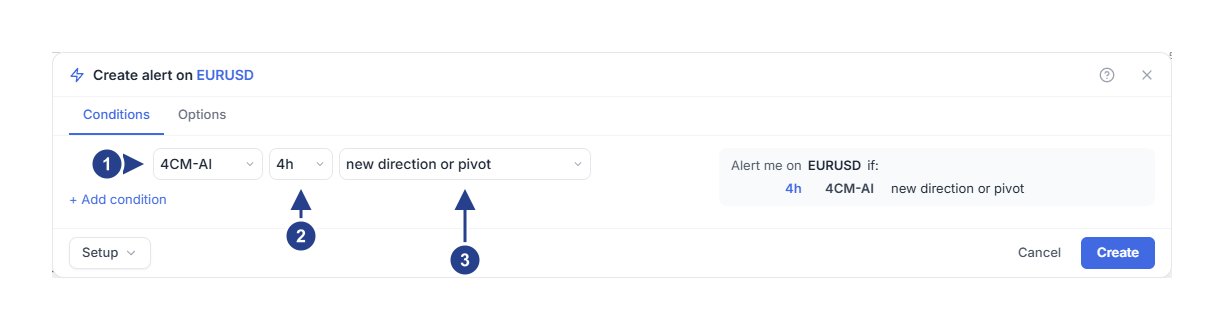
4CM-AI: the forecast source, beside the technical ones.
The forecast timeframe, which is not the same as a candle timeframe.
The event: a new direction or pivot, a turn, or a range.
The forecast timeframes are 5m, 15m, 30m, 1h, 4h, D, W and M, where M is the monthly forecast. They are the forecast's own sources and have nothing to do with the Confirmation timeframe on the Options tab.
new direction or pivot asks for a qualifying change after the watch is armed. An ordinary refresh that keeps the same direction and the same pivots is not that change.
Choose timing and delivery
On Options, choose Once only for a single review, set an expiration and tick the destinations you have connected. Leave Message blank unless the automatic one does not identify the alert clearly enough for you.
Press Create. The editor checks that the forecasts it needs are fresh before arming the watch. Creating an alert records the starting state; it does not notify you because a forecast already exists.
When the alert triggers, open Log and read the recorded forecast event: the source timeframe and the captured change. A pivot value is evidence, not an execution price.
For a repeating watch, edit the trigger and read timing and lifetime. Every new cycle has to satisfy the condition again.
Require a current direction
turns bullish, turns bearish and is range bound describe the forecast direction that must hold when the whole alert completes. Choose one when the direction is your filter rather than your event.
If the 4h forecast is already bullish, turns bullish · current is greyed out, because on its own it would make the alert true the moment you saved it. Add the pending part first, for example a zone entry on another timeframe, and then pick the direction: with something still to wait for, the choice becomes available.
A direction from earlier in the cycle does not stay valid after it changes. The direction has to match at the moment the whole rule is ready. That is the difference from new direction or pivot, which is an event recorded inside the cycle.
One direction and one zone per timeframe
A forecast timeframe can carry one direction rule and one zone rule, no more. If you add a second direction row for the same timeframe, the editor says so and keeps Create disabled until you fix it.
A 4CM-AI row and a technical row can share one alert, but the top level must be and, because the engine joins the forecast part and the technical part that way. Put technical alternatives inside parentheses and use or there. The editor explains this in the same words when your draft needs it.
One thing cannot be changed later: an alert keeps its kind for life. Replacing the last 4CM-AI row of a forecast alert with a technical one is refused with "Create a separate alert to switch between 4CM-AI and other conditions". Build the other rule as a new alert.
Shortcuts on the chart
The Forecast panel gives you a lightning control per timeframe and a zone control per timeframe; their tooltips say what they do. They open this same editor. Open it whenever you want to read the whole rule rather than trust an icon's colour.
Older forecast alerts keep their saved behaviour until you edit and save them. When the editor shows a conversion notice, saving starts a fresh cycle in the current format and earlier notifications stay in history.
Continue with forecast zone alerts or combine forecast timeframes.