
An alert watches a condition you choose and tells you when it matches. You build it in one window with two tabs: Conditions is what to watch, Options is how often it may fire and where the message goes.
Start with one price level, then add a drawing, an indicator, a candlestick pattern or a 4CM-AI forecast condition when your example needs it. Every condition is a row, and rows can be combined.
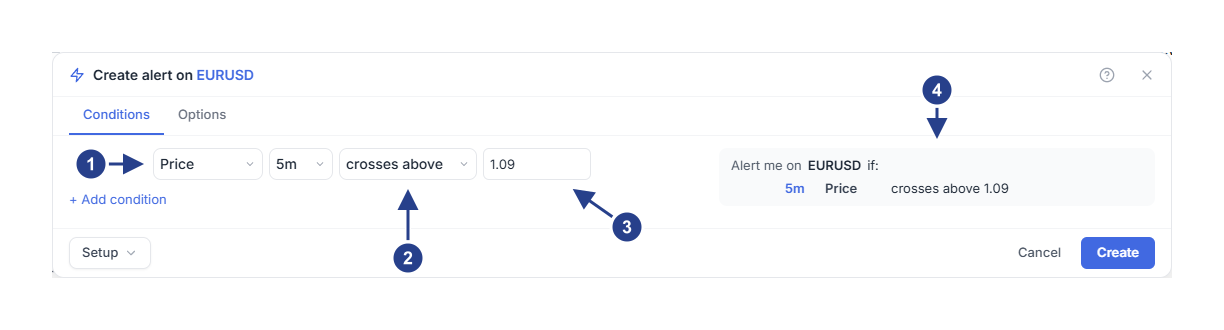
Condition source: pick what the alert watches. Price is one of twelve sources.
Operator: the event or the state to watch for, in the words the summary uses.
Value: the price level to compare against.
Alert me on: read this line back before you save. It describes what you built.
Choose your learning path
Already comfortable with chart alerts? Take the Quick tour. It walks through the whole workflow once and links to the guide that covers each decision in detail.
Want to learn by doing? Open Step-by-step guides and follow the lessons in order, or pick the outcome you want from the guide map below. Each lesson gives you example settings, the actions to take, and the result to check.
Start here
Price, lines and drawings
Indicators and candles
Combine conditions and set the timing
4CM-AI forecast conditions
Delivery and messages
Manage and fix
Before you start
Open 4CM-AI Charts and sign in to use alerts. You can read these Help pages without signing in. Your plan decides which alert types and how many alerts are available to you.
4CM-AI forecast conditions are included with every active membership, the trial as well. They work on symbols that have a 4CastMachine AI forecast and on the markets your plan includes. If the 4CM-AI source is greyed out in your editor, its tooltip tells you why.
Use the illustrations
Numbered arrows point at the control explained in the note under the picture. Read the notes, then follow the written steps. Example values and sample alerts illustrate the interface; they are not advice and they do not show a market outcome.