
You will create an alert for price meeting a zone produced by 4CastMachine AI. Use the forecast timeframe of the zone you actually mean to watch.
Availability
Forecast zone conditions are included with every active membership, the trial as well, on symbols that have a 4CastMachine AI forecast and on the markets your plan includes. The row offers only the zones the current fresh forecast provides. A Buy zone or a Sell zone is a named area to review, not an instruction to place an order.
Example: watch a 4h Buy zone
Open Alerts, press +, and choose 4CM-AI as the row source.
Set the forecast timeframe to 4h.
In the rule dropdown, choose price enters Buy zone. The side and the event are both chosen here. A side the current forecast does not offer is greyed with "not available"; the editor never invents the other zone.
Look at the Zones block under the summary. It draws the zone the alert will watch, filled the way the chart fills it, with the upper price on its top edge, the lower price on its bottom edge and its name inside.
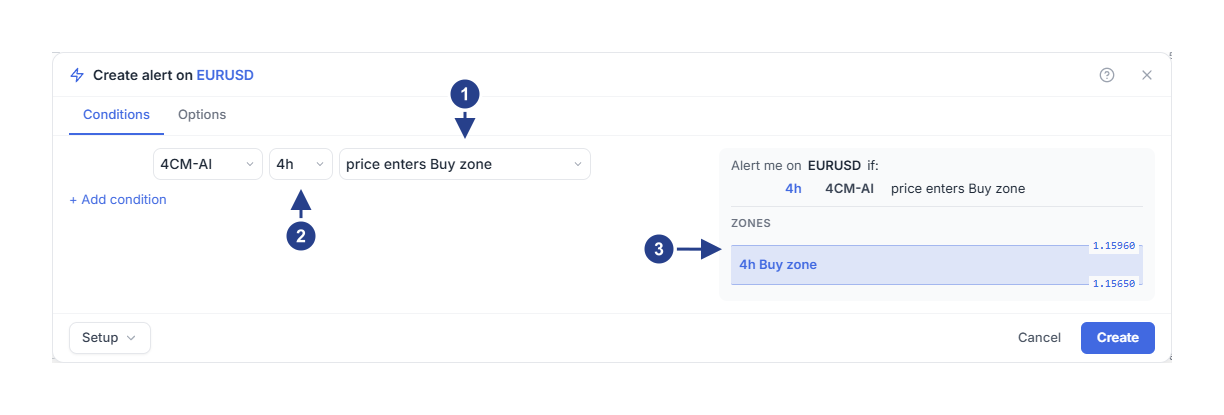
The rule names the side and the event: price enters Buy zone.
The forecast timeframe says which forecast the zone comes from.
Zones: the zone drawn with its upper and lower prices, so you can check it before saving.
You can also start from the chart: Track forecast zone on a drawn zone, or the zone control in the Forecast panel, opens this editor with the zone row ready. Check the symbol, the timeframe and the side after it opens.
While the forecast is still loading, or when a zone cannot be drawn, the Zones block shows a dashed box of the same size with the zone's name and the reason, so nothing jumps when it resolves. If the editor reports a failure, read the message and use Retry before choosing another source.
Choose the zone event
price enters Buy zone watches a new entry into the area.
price approaches Buy zone warns you earlier, at the distance you set.
candle closes inside Buy zone waits for a completed candle inside the area.
Each one exists for the Sell zone as well. Switching between them keeps the distance and the confirmation you already chose.
Choose Once only on Options for a first example, set an expiration and connect your destinations, then save. If price is already inside the zone when the watch is armed, that is the starting state, not an entry. Wait for the next qualifying visit.
Zone bounds move as the forecast changes. The watch follows its source, and new geometry starts a new baseline: price movement buffered against the old bounds is not replayed into the new ones.
An earlier warning with approach
Choose price approaches Buy zone. The row grows one line, within a distance and its unit, because that distance is a real setting of the rule.
Price distance is an absolute distance in the instrument's quote, so 0.0010 on EURUSD means exactly that. Percent is a percentage instead. The same number means very different things in the two units, so choose deliberately.
Save the change. Editing a condition starts a fresh cycle. One long visit does not produce repeated alerts: price has to leave and come back before another event can qualify. A faster trigger does not turn an approach into a timed reminder.
Require a completed candle inside
Choose candle closes inside Buy zone, then set the Confirmation timeframe on the Options tab to 15m. That field appears for this rule because a candle has to close somewhere.
The forecast timeframe still says which forecast is being watched. The confirmation timeframe only says which candles decide. A visit that closes back outside is not a close inside, whatever the trigger says.
Review the evidence
After a trigger, open Log and expand the forecast explanation. Check the source timeframe, the event time, the price and the captured bounds. Original evidence and Open chart give you the context.
A combined forecast alert can complete later than the zone visit itself, so it has no single execution price. With AI Trading Journal access, Save observation keeps eligible evidence for review: it creates a notebook entry, not a trade.
Continue with combining forecast and technical conditions.