
You will organize saved alerts so each one has a clear job. Everything starts in the Alerts panel in 4CM-AI Charts.
Example: organize a morning review
Suppose you want an RSI review on EURUSD and GBPUSD, grouped under Morning review, with a reusable set of conditions you can apply to a whole watchlist.
1. Find the alert you want
Use Search for part of a message or a symbol. Sort by date reverses the order. Under Options, choose All, Active only or Inactive only.
Current symbol and Current time interval narrow the list to the chart you are looking at, and the type filters narrow it to price, technical, watchlist or forecast alerts. When the list says nothing matches, clear the filters before you conclude that an alert disappeared.
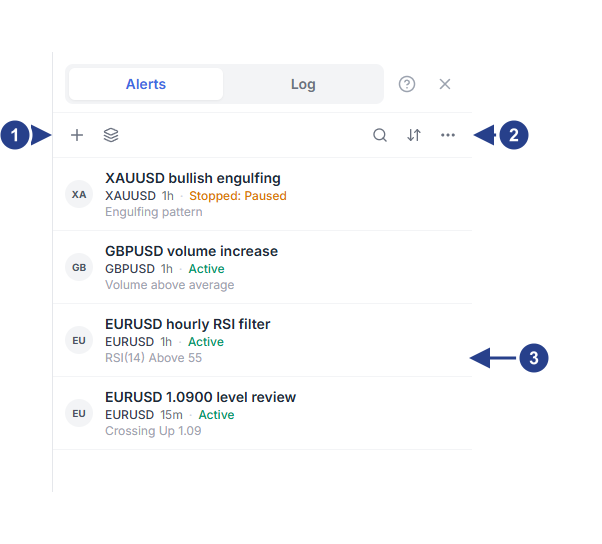
Plus is the main way in: it starts an empty condition row on the chart symbol. The icon beside it opens Setups & Groups.
Options: filters, bulk actions and list settings. Search and sort sit beside it.
Every row prints its condition, so you can read the list without opening anything.
2. Change one saved alert
Hover a row for its controls. Pause stops watching for a while, Restart resumes an eligible inactive alert, Edit reopens the editor on that alert and Duplicate makes another alert from it.
Editing opens the same window you built the alert in, titled Edit alert on SYMBOL, with Save instead of Create and a pause and a delete button beside the Setup menu.
A duplicate is a separate saved alert, so check its condition, message and destinations, and remember it counts against your alert limit.
Delete removes an alert after a confirmation. Under Options, Pause all, Restart all inactive and Delete all inactive act on many alerts at once, so do not assume a search limits what a bulk command touches.
3. Save a setup you can reuse
A setup is a saved set of conditions with its trigger defaults. It lives in the editor's footer, in the Setup menu, and saving one never creates or activates an alert.
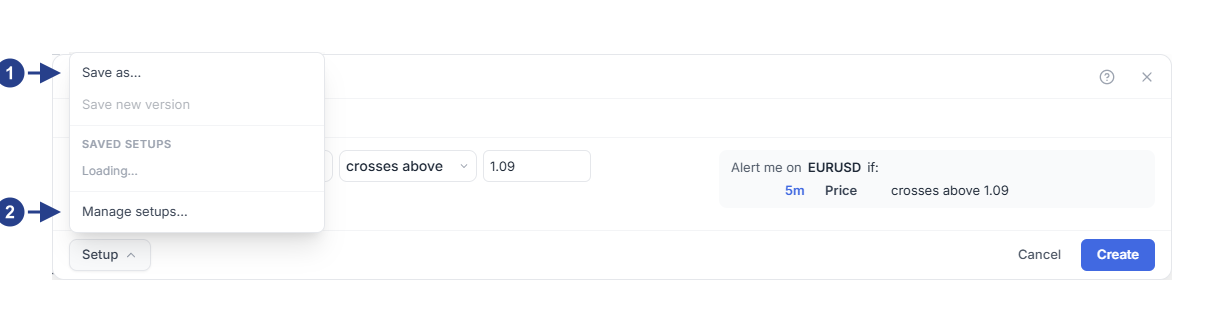
Save as: store these conditions under a name, without creating an alert.
Manage setups closes the editor and opens the organizer.
Build the conditions, for example RSI 14 is above 60 on 15m.
Open Setup and choose Save as….
Type a name such as RSI review 15m and save. You can link it to a playbook at the same time.
The button now reads Setup: RSI review 15m with its version. An orange dot appears when the conditions drift from the saved version, and Save new version stores the new one.
The menu also lists your saved setups. Click one to load its conditions into the editor. Hover a row for the pencil to rename it in place and the cross to archive it. A setup that was saved for one symbol refuses to load on another, and says so.
4. Apply a setup to several symbols
Choose Manage setups… at the bottom of the menu. It closes the editor and opens Setups & Groups, because the organizer is a full modal and the editor is a window that floats above the page.
On the Setups tab, each row shows how often it was used, its timeframe and its trigger. Apply… asks for symbols and Create Alerts creates one alert each. Read the result, including any symbol it skipped. Edit setup opens the editor on those conditions.
A setup reuses conditions and timing. Check the destinations on each alert it created rather than assuming every preference came along. Indicator thresholds travel between symbols better than fixed prices: 1.1000 does not mean the same thing everywhere, and a drawing-linked condition belongs to one chart.
5. Create and assign a group
On the Groups tab, type Morning review and press Add. Then edit each alert, open Options and choose that group in the Group field under Schedule.
Mute group stops those watches being evaluated and Unmute group resumes the eligible ones. Muting leaves every alert in place, and deleting a group keeps its alerts and simply leaves them ungrouped.
6. Link a named watchlist
Create a named watchlist in the chart workspace with EURUSD and GBPUSD. On the Watchlists tab, pick that list and the setup, then press Create watchlist alert.
The binding creates ordinary alerts for the eligible members. Adding a symbol to the list can create its alert, and removing one can remove the alert that came from it. Refresh watchlist alerts asks for an update; read the message about skipped symbols. Membership changes can take a moment to appear.
Removing the binding deletes the alerts it created. That is different from archiving a setup, which leaves existing alerts running.
7. Use a symbol's alert switch
In a watchlist row, a blue alert icon means that symbol has active alerts. Hover it to read the active, paused and ended counts. Clicking it pauses the eligible active alerts, and clicking it again resumes the paused ones. Completed alerts are not restarted this way.
On a symbol with no alerts at all, the same icon opens the editor: with forecast access it starts a 4CM-AI row for the chart timeframe, otherwise an empty row you fill in yourself.
Continue with reviewing the trigger log.