
You will use AI Trading Coach to prepare an alert or to find existing ones. The coach proposes a configuration and you decide whether to apply it.
Before you begin
Sign in with access to AI Trading Coach and open it from the navigation. In its chart-side panel, check the active symbol and timeframe, or name both in your request so nothing depends on that context.
The examples below are analysis notifications. Their numbers are illustrative and recommend nothing.
Prepare a price alert
Send the whole request at once:
"Prepare an alert for EURUSD on 15m crossing above 1.1000, once only, with an in-app notification."
Name the symbol, the direction of the comparison, the level, the frequency and the destination. Add an expiration if you want one, for example "Expire at the end of today."
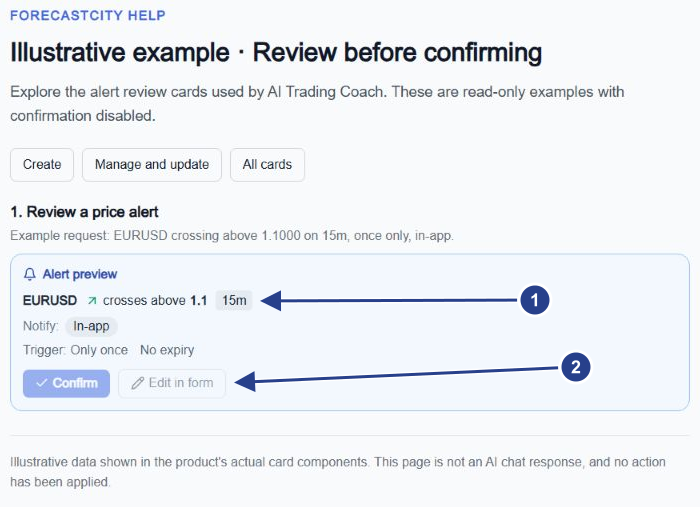
Condition and timeframe: check the symbol, crossing direction, price and 15m timeframe together.
Review actions: Confirm applies an accepted proposal and Edit in form opens supported price proposals for editing. Both are deliberately disabled in this read-only example.
Read the card before you act on it: the symbol, the comparison, the price, the timeframe when present, the trigger and the destination badges, plus any warning and cost. A reply in the chat does not mean an alert exists.
Edit in form opens the ordinary alert editor with the price, the operator, the trigger and the destinations already filled in, so you can change anything and save it there. For a proposal you agree with, Confirm is enough.
After a successful creation, open the alerts list and find the new row. If it failed, read the error before pressing Retry.
Describe an indicator condition
Make the parameters explicit:
"Prepare a EURUSD alert on 15m when RSI period 14 crosses above 60. Notify me in-app and stop after one trigger."
Read the summary carefully. "is above" is a standing comparison and "crosses above" asks for a transition; they are not interchangeable, and the editor uses exactly those words.
The coach can prepare price, indicator and volume conditions. Try "Prepare an alert on EURUSD 15m when EMA period 9 crosses above EMA period 21", or "Prepare a EURUSD 15m alert when volume exceeds twice its 20-bar average".
For a small combination, name up to three conditions and whether and or or joins them, then read the combined summary before confirming.
Indicator and combined proposals do not offer the Edit in form shortcut in this release. Ask for a corrected proposal when a parameter is wrong, and use the editor itself for drawings, Fibonacci levels and 4CM-AI rows: the coach cannot pick a chart object or a forecast row for you.
Organize existing alerts
Ask "List my EURUSD alerts." The card reads your saved alerts, so check the matched names and statuses. A distinctive fragment of a name narrows it.
Then ask "Pause alerts whose name contains Morning review." Review the matching rows and the count before pressing the pause action. Resuming and deleting work the same way, and for deletion you should read the whole matched list first.
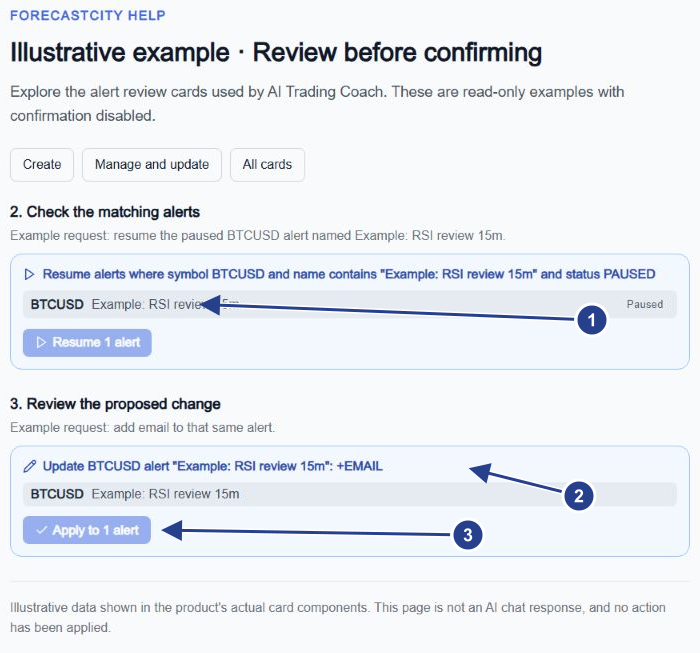
Matched alert: inspect the exact symbol, distinctive name and paused status before applying a management action.
Proposed update: the +EMAIL summary identifies the requested change for the matched alert.
Apply to 1 alert: review the count before applying a real update. This read-only example keeps the action disabled.
Review an update separately
Ask "Add email to the alert whose name contains EURUSD level review." The update card lists the matches and the change. Review them, then press the apply action with the count it shows.
Updates can change the message, a fixed price level, the destinations, the trigger, the expiration, and a webhook URL when the webhook destination is added.
Open the alerts list afterwards to confirm what was saved. If the card reports no match, use a clearer symbol or name fragment. Continue with organize alerts.