
More insight.
Same MetaTrader.
Your forecasts show you the market.
Now your trades can teach you about yourself.
Follow 4CM-AI forecasts inside MetaTrader. Connect your real trades to your AI Trading Journal, and get your Web App alerts right on your terminal.
Windows installer · Version 2.3 · MT4 & MT5 together
 MetaTrader 4
 MetaTrader 5 Automatic account setup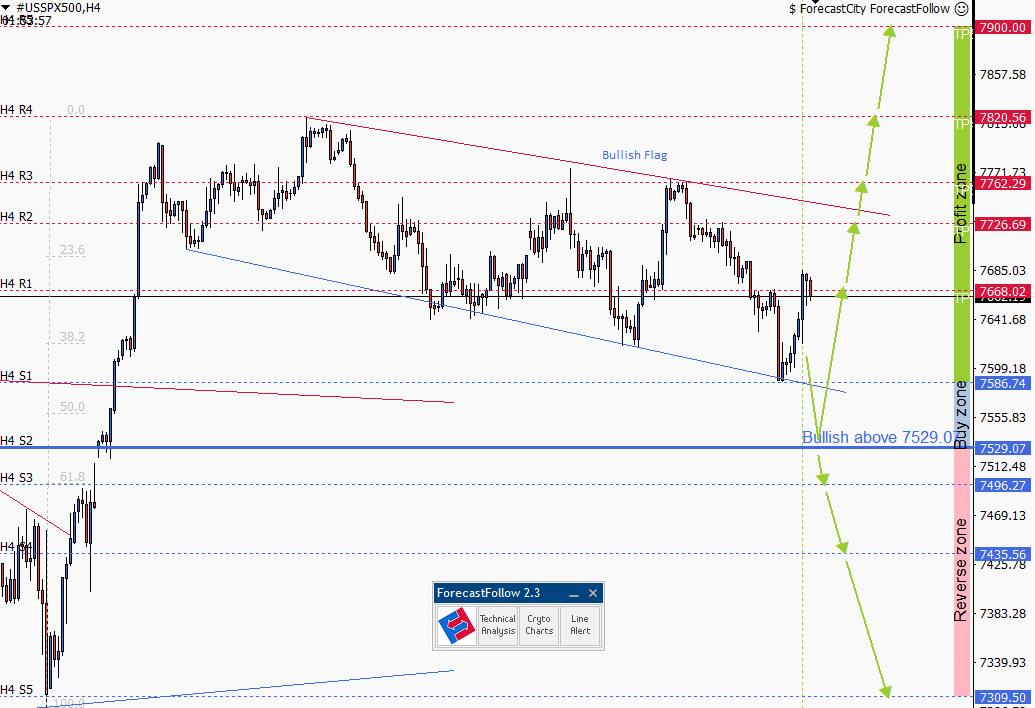
AI Trading Journal Live beta
AI Journalist uncovers your strengths and weaknesses, and those of your strategies, better and faster, and helps you become a better trader.
A trading journal is a record of your trades: what you traded, when you entered and exited, and the result. With your permission, ForecastFollow records them automatically from MetaTrader. AI helps you see which setups and trading hours have worked best for you, and which habits have cost you money.
And the ones you don't.
You remember the big winner. It is harder to remember the five times you came back after a loss and increased your size. A journal counts those five.
from a bad day.
You trade. It keeps the record.Approve journal sync in ForecastFollow and your trade history, open positions and balance changes sync automatically. You write nothing.
Find the setups worth repeating.
See which setups make you money and which ones only feel good.
Know your better hours.
Discover the hours and days you trade well, and where your results change.
Understand your exits.
See how early you take profit and how long you hold on to a loss.
Put a price on your habits.
No stop loss. Rushing back after a loss. Sizing up to win it back. See what those habits cost in dollars.
A conversation about your own trading. Ask your AI Trading Journal about your real trades, and learn from the history that is yours.
Alerts & messages
Your alerts now find you
in MetaTrader.
Keep your attention on the chart you are already watching. Alerts you set in 4CM-AI Charts can pop up in your terminal, alongside news and messages from ForecastCity.
Choose what reaches you in your notification preferences. ForecastFollow brings it into MetaTrader while it is running.
Choose your notificationsYour alert appears beside your MetaTrader chart.
Illustration of notification delivery


4CastMachine AI, inside MetaTrader
The path ahead.
Already on your chart.
The forecasts you came for are still here. Every guide-line and zone lands on your MT4 or MT5 on its own, with nothing to draw by hand. Open your chart with a roadmap to work from.
Download & install
One setup.
A more connected MetaTrader.
Use your existing ForecastCity sign-in. Your MetaTrader account connects automatically.
An active ForecastCity subscription is required.
Let the installer handle it.
One Windows wizard finds your MetaTrader installations and installs ForecastFollow for MT4 and MT5.
Download installer Windows · .msi · MT4 & MT5Easy installation, step by step
The installer handles MT4 and MT5 together. The screenshots show the installation flow; some screens may look different in version 2.3.
Download the installer
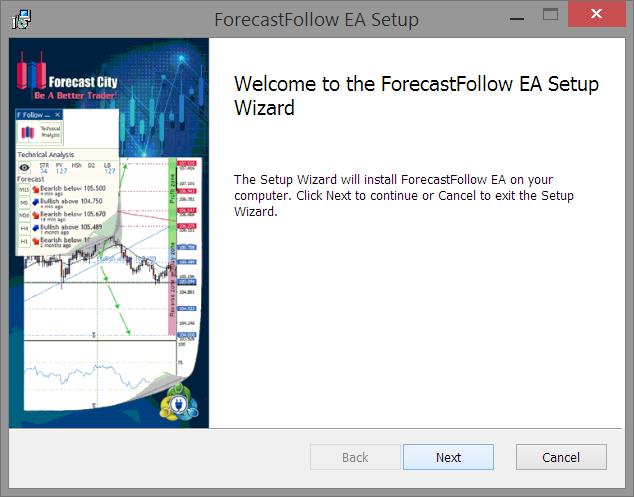
Save the ForecastFollow installer on your Windows computer.Open the setup wizard
Double-click the .msi file and click Next.View this step
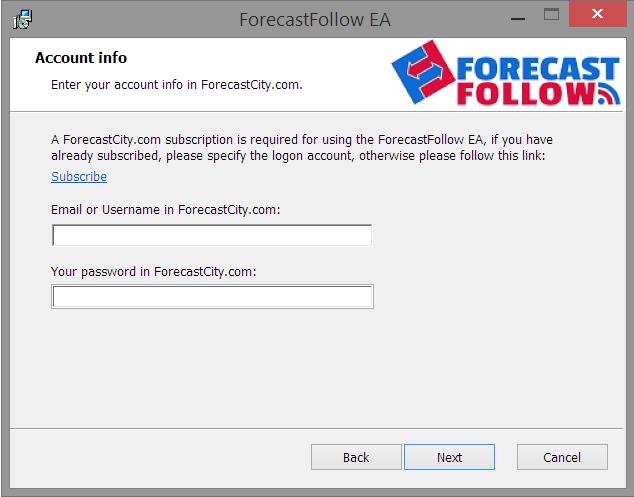
Sign in to ForecastCity
Enter your ForecastCity email or username and password.View this step
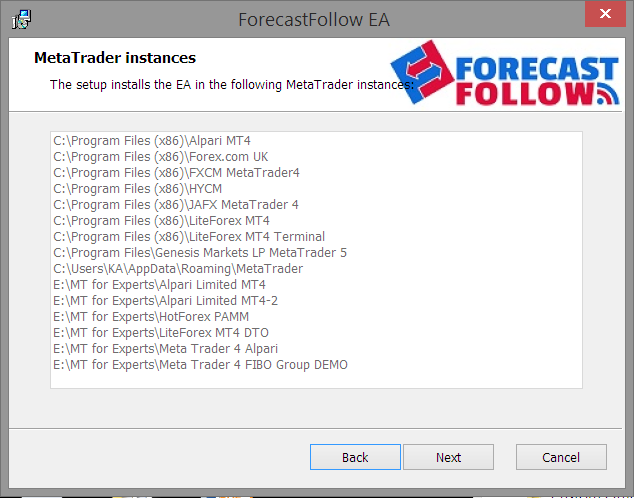
Review the detected MetaTraders
The wizard finds the MetaTrader installations on your computer.View this step
Install ForecastFollow
Click Install and let the wizard finish copying the files.View this step
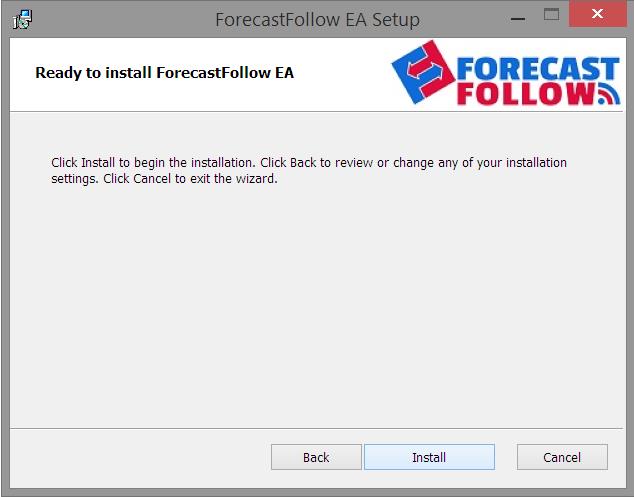
View this step
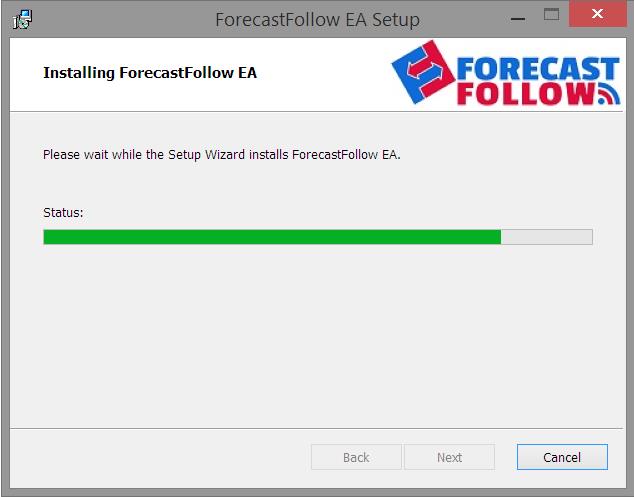
Open MetaTrader and start ForecastFollow
Your running account connects automatically when ForecastFollow signs in. Follow the welcome prompts to choose whether to turn on your AI Trading Journal.View this step
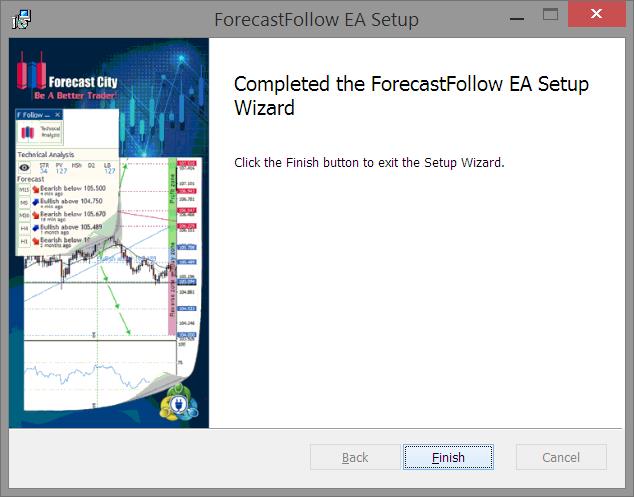
Manual installation, step by step
Use the ZIP for the MetaTrader version you are installing into.
Open your MetaTrader Data Folder
In MetaTrader, choose File → Open Data Folder.View this step
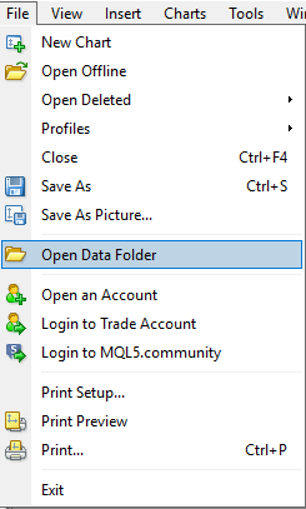
Extract and copy the folders
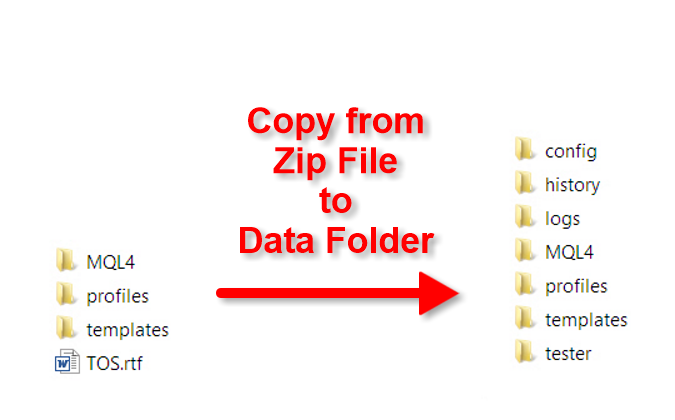
Extract the ZIP and copy its folders into the Data Folder. If Windows asks for permission, click Continue.View this step
Restart MetaTrader and sign in
Reopen MetaTrader, start ForecastFollow on your chart and sign in with your ForecastCity account. Your running MetaTrader account connects automatically. Choose whether to turn on journal sync when prompted.
ForecastFollow asks whether you want to connect your AI Trading Journal. Choose Yes to sync your trades, or No to keep using forecasts only.
This video covers installation. With ForecastFollow 2.3, account registration is automatic.
Your data. Your choice.
You decide whether to connect your journal.
Journal sync starts with your permission in ForecastFollow. Your account's trade history, open positions and balance changes travel over an encrypted connection and belong to your ForecastCity account.
We never sell or share your trading data. You can delete the journal account and its history whenever you choose.
Do I need to know how to keep a journal?
No. Once you approve sync, ForecastFollow sends your available trading history and keeps your journal updated as you trade. You can start by looking at your setups, timing and habits.
Can I keep using ForecastFollow just for forecasts?
Yes. Journal sync is optional. Choose No when ForecastFollow asks to connect your AI Trading Journal, and it will continue drawing forecasts as usual.
Where will I see my journal?
Open AI Trading Journal in your browser and sign in with your ForecastCity account. ForecastFollow connects your MetaTrader trades to it.
What do I need to get started?
MetaTrader 4 or MetaTrader 5 on Windows and an active ForecastCity subscription. Use your existing ForecastCity sign-in in ForecastFollow. View your subscription.
Do I need to leave MetaTrader running?
Yes. ForecastFollow needs to be running in MetaTrader to update forecasts, sync trades and receive terminal notifications. You can review the journal data already synced in your browser at any time.
ForecastFollow 2.3
Your next trade has
more to teach you.
Keep the forecasts. Connect your journal. Bring your alerts with you.